
How to Access the Education Program
To access the Education Program:
Navigate to the Education section from the main dashboard.
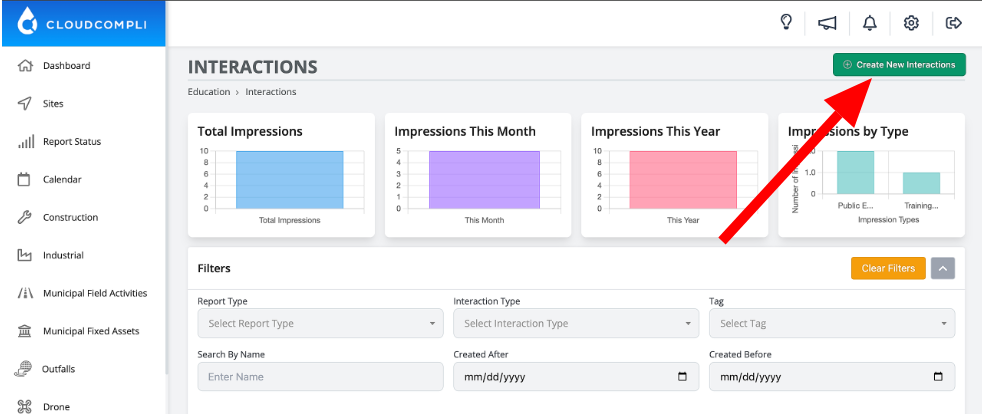
From here, you can create new interactions, apply filters, customize data table columns, and download or print reports as needed.
The Interactions page gives a central view of all interactions, making it easy to track and manage educational events.
Creating a New Interaction
To create a new interaction:
Click on the green "Create New Interactions" button at the top of the Interactions page.
Fill in the required fields, including interaction details, type, and location information.
Add tags, descriptions, and any additional data relevant to the interaction.
4. Save the interaction to add it to the table, where it can be managed and analyzed.
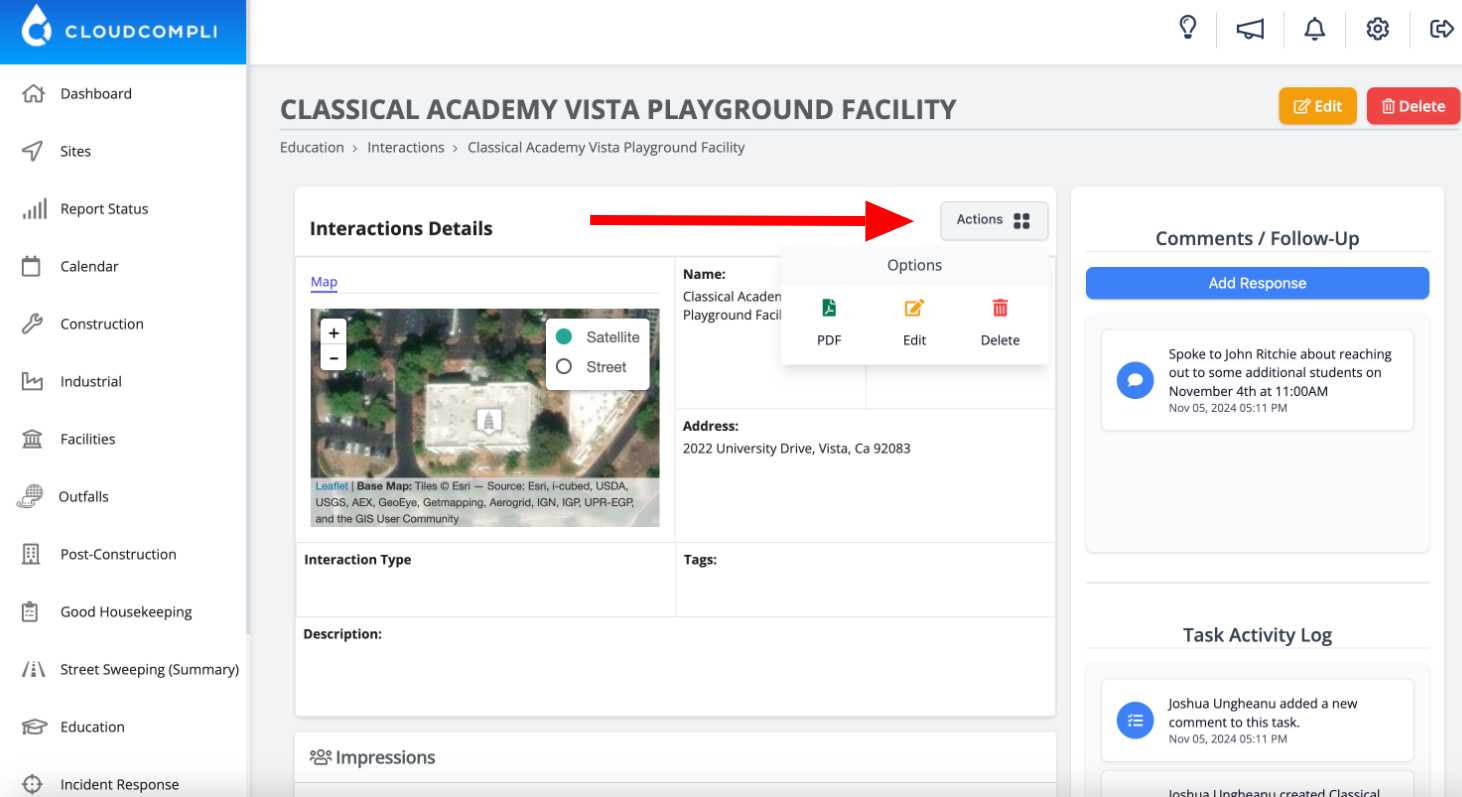
5. Once the interaction is created, you can modify it or print it as PDF directly from the actions menu.
Key Features
1. Analytics Overview
Preview important metrics, including:
Total Impressions: Total reach across all interactions.
Impressions This Month: Number of people reached in the current month.
Impressions This Year: Yearly reach count.
Interaction by Type: Breakdown of interactions by type for easy analysis.
2. Filter and Customize Reports
Use filters to narrow down interactions based on:
Report Type
Interaction Type
Tag
Date range
Search by Name
Customize the columns in the data table to view specific information relevant to your needs.
3. Direct Actions on Reports
Copy to Clipboard: Quickly copy the data for easy sharing or pasting.
Download CSV: Export the reports for offline analysis or archiving.
Customize Columns: Choose the columns that appear in your data table, ensuring a personalized view for each user.
4. Impressions Tracking
Track the number of impressions for each interaction to measure reach and engagement for each event.
5. Geo Mapping
View the geographic location of each interaction on a map, helping users visualize event locations and better plan future interactions.
6. Task Activity Log
Maintain a detailed log of all activities related to each interaction. The activity log records every change and action, providing a complete history of the interaction.
7. Comments / Follow-Up
Add comments to keep a record of notes, updates, and follow-ups for each interaction. This section is useful for ongoing interactions or when additional input is required.
Note: If the Education Program is not enabled, please contact support for assistance.