

Component Fields: Overview
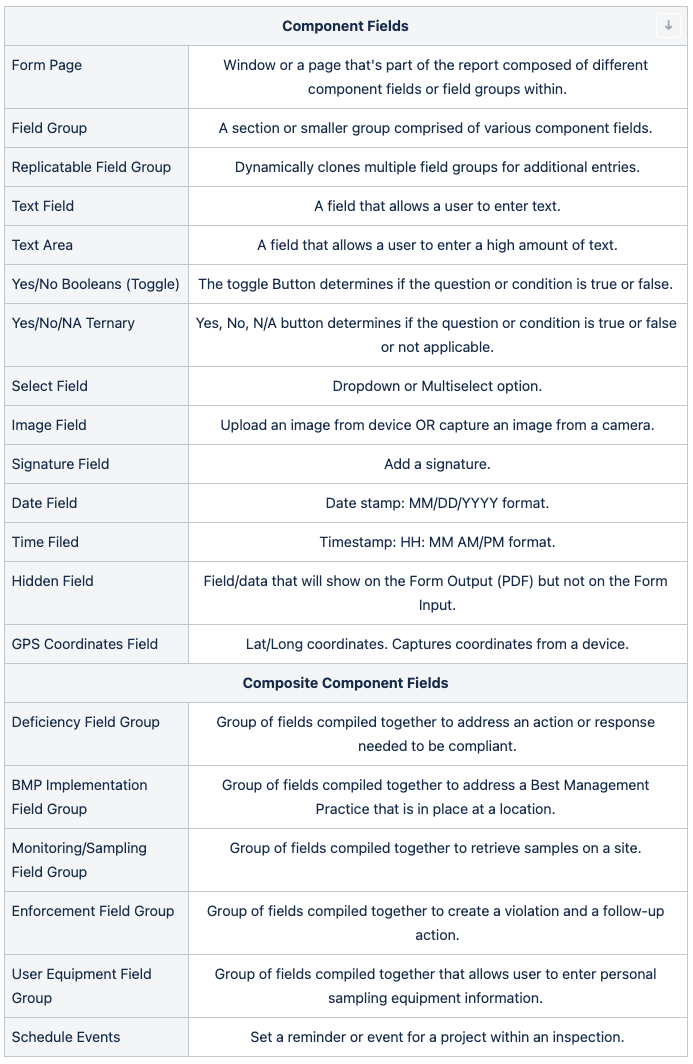
Component Fields: In-Depth
The component fields are a set of elements that can be used in the form builder process. These fields will show on the Form Input/digital side that allows users to enter in data from the CloudCompli user interface. The data entered in by the user will then be translated over to the Form Output, which will then generate a PDF copy of the report.
Form Page
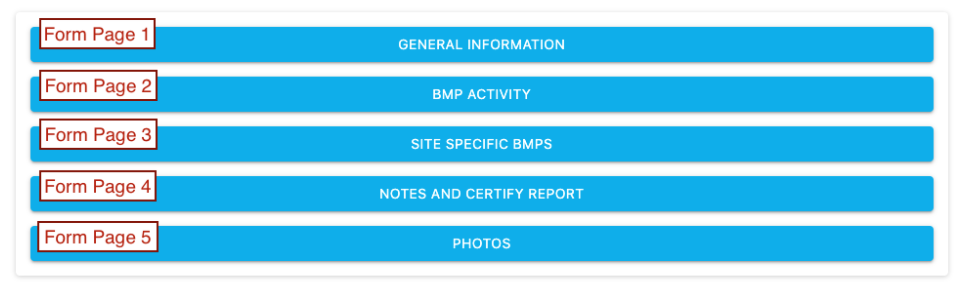
The Form Page is a window or a page composed of different fields or field groups within. This is usually what separates topics/contents/tables on a report. The Form Page will show on the Table of Contents or as a numerical value when navigating through pages.
Sample of a Form Page on the Table of Contents page.
Sample of inside a Form Page comprised of other fields and elements.
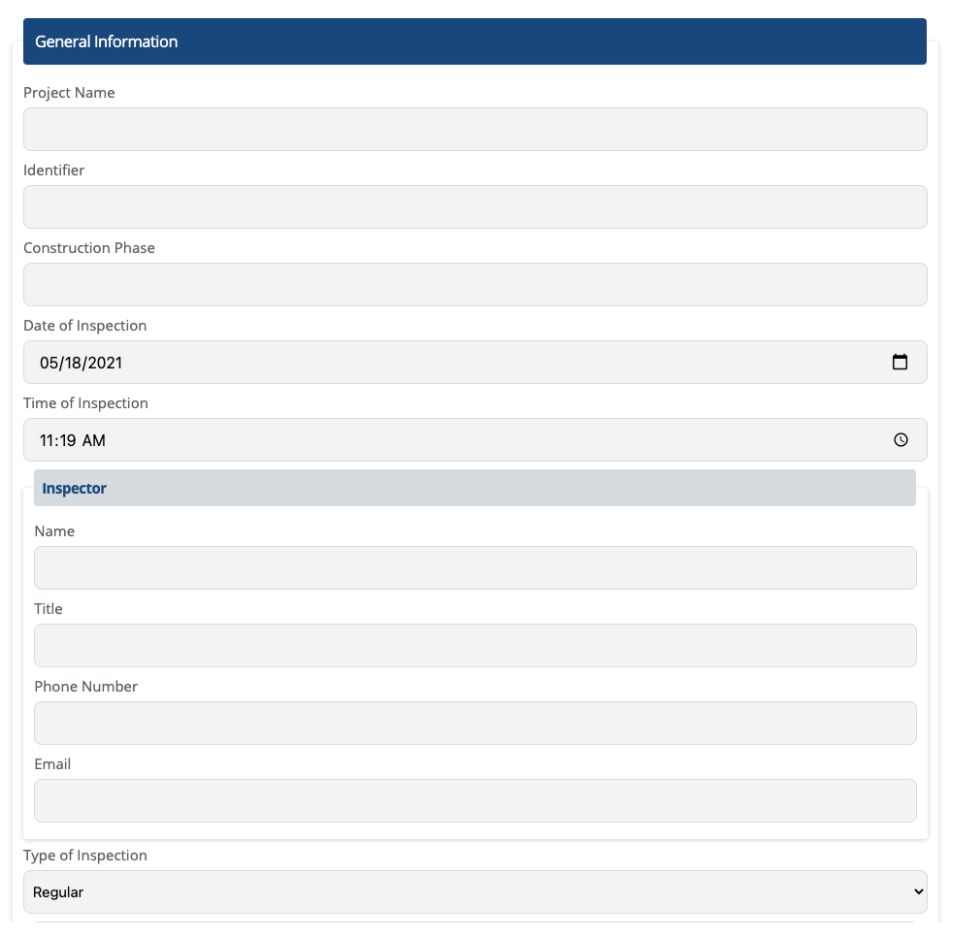
In this image above, General Information is the Form Page name which is composed of various fields (e.g., Project Name, Time of Inspection, Inspector Name, etc.).
Features & Limitations:
Features & Components that can be enabled | All fields specified under Component/Composite Fields can be enabled within a Form Page.Offers a unique key for Power BI querying. |
|---|---|
Restrictions & Limitations | Cannot replicate a form page.Cannot be nested with other field groups. |
Field Group
A Field Group is a section or group comprised of various component fields that are often used to separate sections/rows on a form.
Advantages of using a Field Group include the ability to hide/collapse elements within a Field Group. A Capture Group can also be enabled which means components within the Field Group can be sent out to other recipients for a follow-up response.
Sample Field Group 1 (General Information):
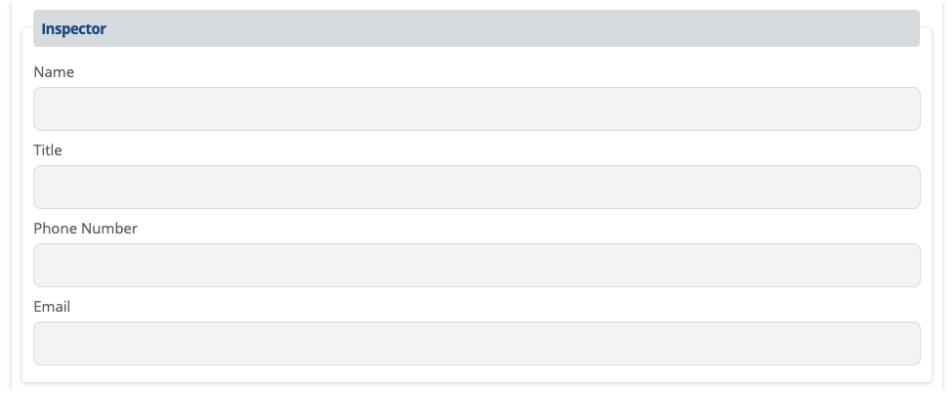
Inspector is the Field Group name which is comprised of 4 components: Name, Title, Phone Number, and Email.
Sample Field Group 2 (Checklist Item):
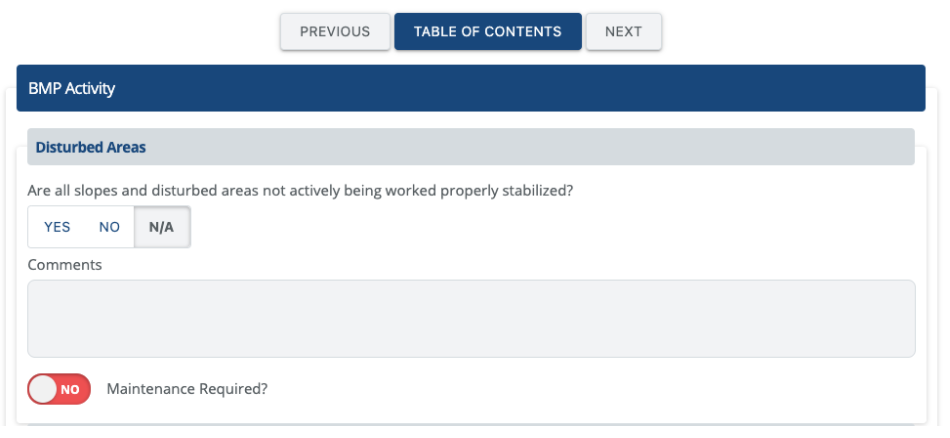
Disturbed Areas is the Field Group comprised of 3 elements: A ternary field (Yes, No, N/A) with a question, a text area (Comments), and a deficiency composite (Maintenance Required?).
Sample Field Group 3 (Collapsed Field Group):
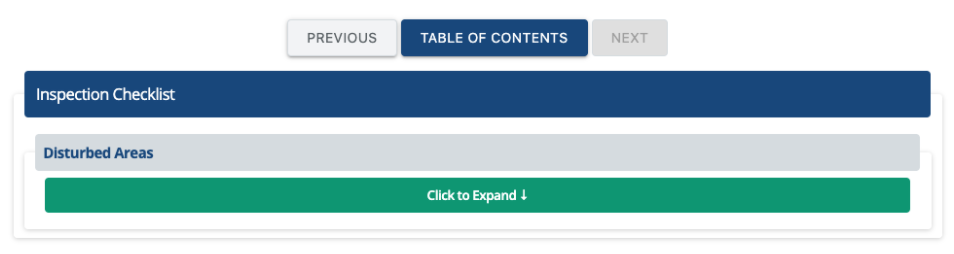
The Click to Expand button hides all of the content within the Field Group. The hidden feature is ideal for a long list of questions to make it easier for the viewer to navigate through each question.
Features & Limitations:
Features & Components that can be enabled | All fields specified under Component/Composite Fields can be enabled within EXCEPT Sampling Locations Field Group or Form Page component.A Capture Group can be enabled. Follow-up responses from a user or recipient once the report has been published can be enabled also. For example, a signature, name, date, and title within a Field Group can be captured outside the report from a non-CloudCompli user.Offers a unique key for Power BI querying. See limitations below. |
|---|---|
Restrictions & Limitations | Cannot be used with Sampling Location Field Group or a Form Page. When querying data from Power BI, it is possible to retrieve the Field Group Key name (e.g., the title of the Field Group such as “Disturbed Areas” title from the above example). Any other data within the Field Group may be difficult or impossible to retrieve. |
Replicatable Field Group
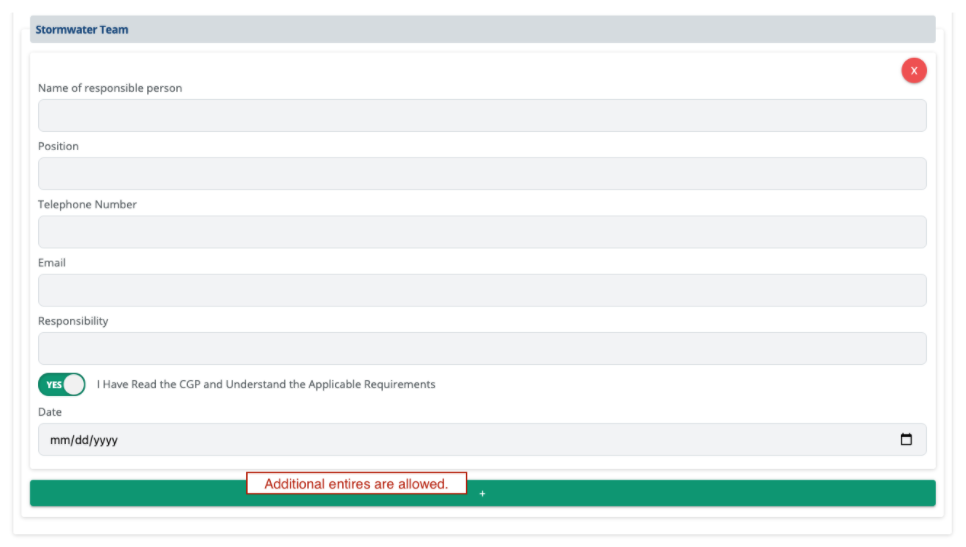
Like the Field Group, the Replicatable Field Group allows to dynamically clone multiple field groups for additional entries.
Sample Replicatable Field Group (multiple team members):
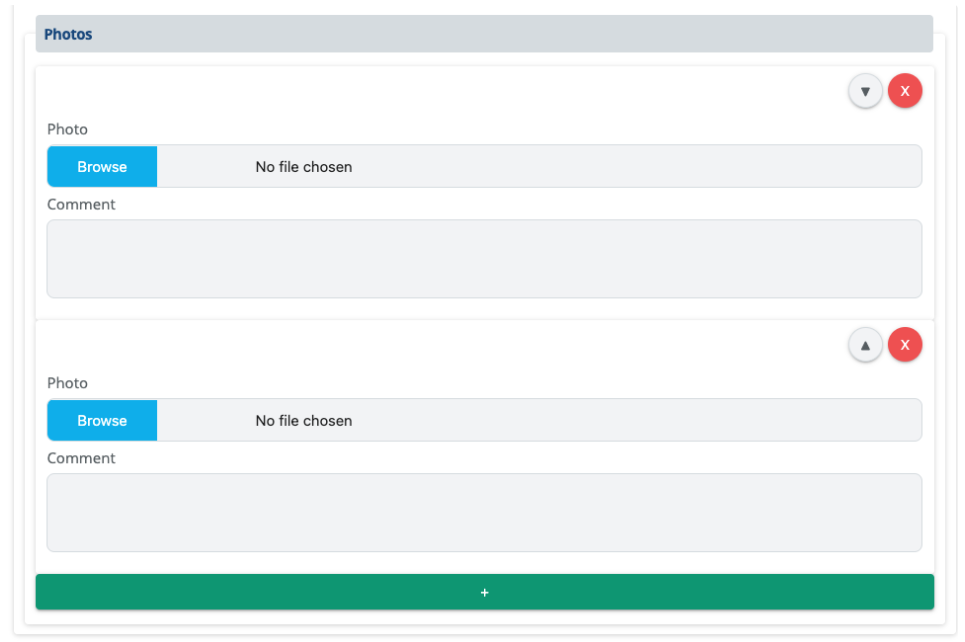
The most common use of a Replicatable Field Group is for Photo entries:
Features & Limitations:
Features & Components that can be enabled | Most fields specified under Component/Composite Fields can be enabled. See limitations for components that cannot be enabled. |
|---|---|
Restrictions & Limitations | Cannot be used with:Monitoring/Sampling Locations Field GroupForm PageDeficiency Field GroupBMP Implementation Field GroupUser Equipment Field GroupSchedule EventsEnforcement ActionsItems listed above are already replicatable field groups.Capture Group cannot be enabled. Use Field Group instead.Querying data from a Replicatable Field Group into Power BI is not possible. We recommend avoiding Replicatable Field Groups if querying data. |
Text Field
A text field is a simple field that allows a user to enter text. Characters in a text field can be numeric or alphabetical.
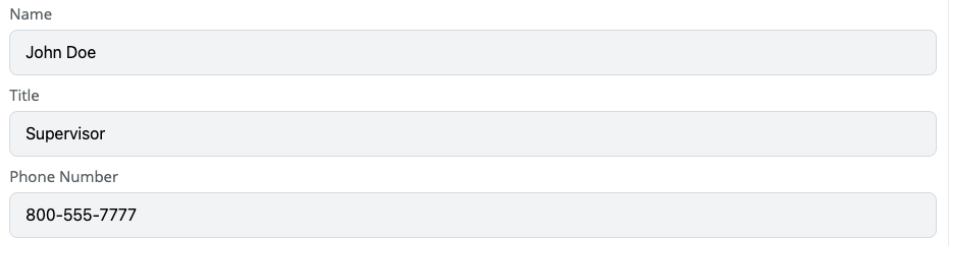
Format Constraints – Set a constraint to ensure data is entered accurately.
Sample of Text Field with a Phone Number constraint:
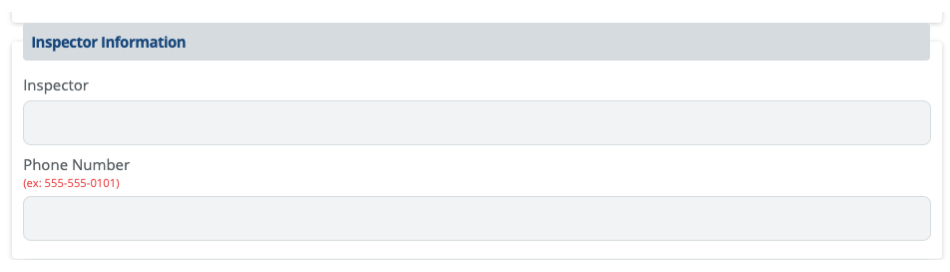
Constraint Type: US phone number only with an optional input (leave empty if needed).
Validation Output if wrong data is entered: “Must be a US phone number with area code (ex: 555-555-0101)”
Features & Limitations:
Features & Components that can be enabled | Offers a unique key for Power BI querying for each text field.ToolTip (Information Description) - Customizable tip window that informs users where autofill data is coming from or other custom information. |
|---|---|
Restrictions & Limitations | Holds up to 200 characters. Mainly designed for names, titles, or very short text. |
Text Area
Like the Text Field, the Text Area allows for more detailed descriptions to be input. Some good examples are Notes, Comments, multiple-paragraph entries, etc.

Features & Limitations:
Features & Components that can be enabled | Offers a unique key for Power BI querying for each text area field. |
|---|---|
Restrictions & Limitations | Holds up to 700 characters. Mainly designed short sentences, comments, and notes. ToolTip (Information Description) Not Available.When querying data from Power BI, it is possible to retrieve the Text Area Key name. However, a high character user input may be difficult to query. |
Yes/No Booleans (Toggle)
Utilize a Yes/ No toggle button or 'boolean' to determine if the question or condition is true or false. Can be used to reveal other sections or questions associated with the previous item.
Often used as a checklist response where Yes = checked or No = unchecked.
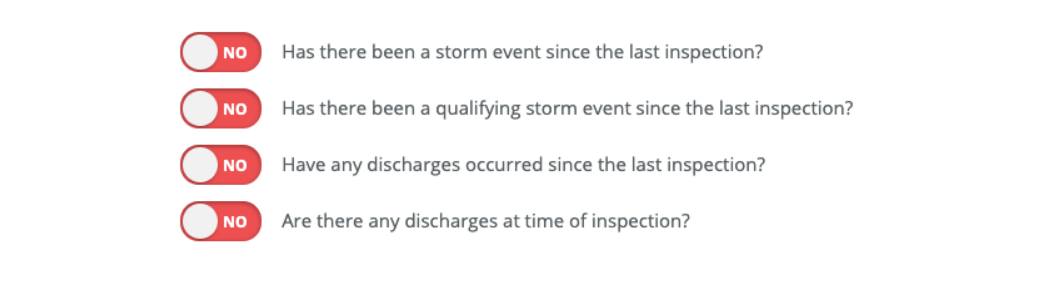
Conditionally show input if the button is Yes/No: Reveals more questions underneath if the answer is Yes. Can be nested with more questions if needed.
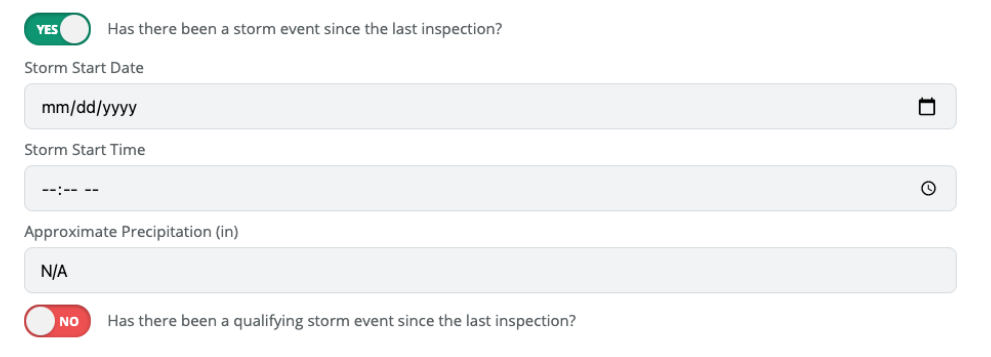
Features & Limitations:
Features & Components that can be enabled | Conditionally show other information if toggled Yes or No.A great way for checklist items to show on the report (output). |
|---|---|
Restrictions & Limitations | Cannot rename: Yes/No. Colors Cannot be changed.Nested questions when using conditional formatting will not work when querying data into Power BI. |
True/False/NA Ternary Fields
The Ternary Field is comprised of a Yes, No, and N/A selection which determines if the question or condition is true, false, or not applicable.
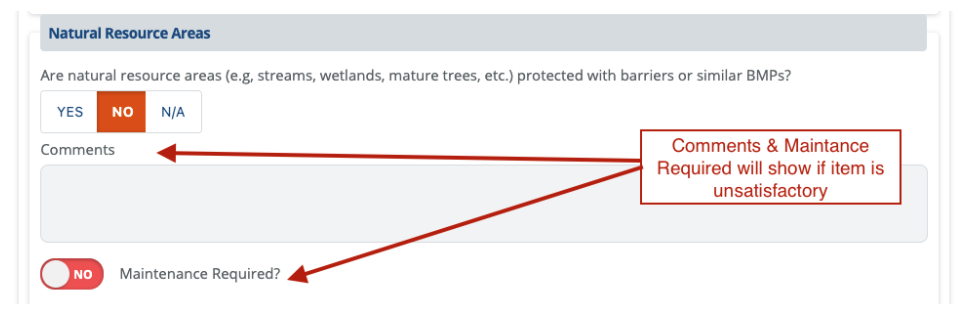
Often used for inspection checklist items for Best Management Practices. In some cases, depending on the selection, additional fields will follow when choosing Yes or No (Conditional Fields).
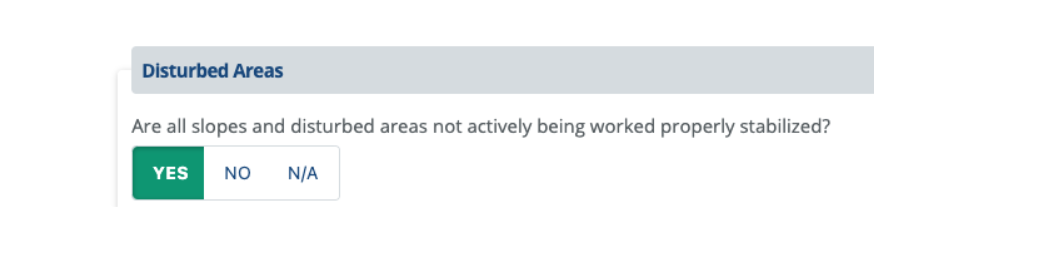
Sample Ternary Field with conditional show data.
Features & Limitations:
Features & Components that can be enabled | Conditionally show other information if toggled Yes, No, or N/A.Great tool for BMP Checklist Items or Inspection Checklist if BMP question applies. |
|---|---|
Restrictions & Limitations | Cannot rename: Yes/No/ NAColors cannot be changed.Nested questions when using conditional formatting will not work when querying data into Power BI. |
Select Field
As the name implies, the Select Field is a dropdown or multi-select option. Great for choosing predefined items.
Sample Select Field using single select:
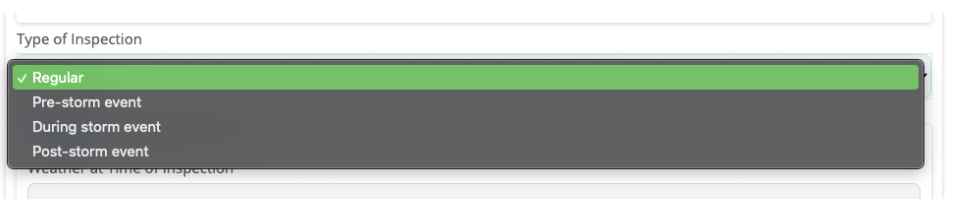
Sample Select Field using multi-select:

Features & Limitations:
Features & Components that can be enabled | Conditionally show more information/questions if a specific item is chosen.Ability to use predefined items within the account, such as:Site TagsManagement PracticesUsersDeficiency LevelsEquipment CategoriesEnforcement LevelsUS State AcronymsCustom |
|---|---|
Restrictions & Limitations | Conditional follow-up questions cannot rely on more than one answer. |
Image Field
The Image Field allows the ability to upload an image from the current device or offers to capture an image using the device's camera (on mobile devices after allowing permission to access your device's camera).
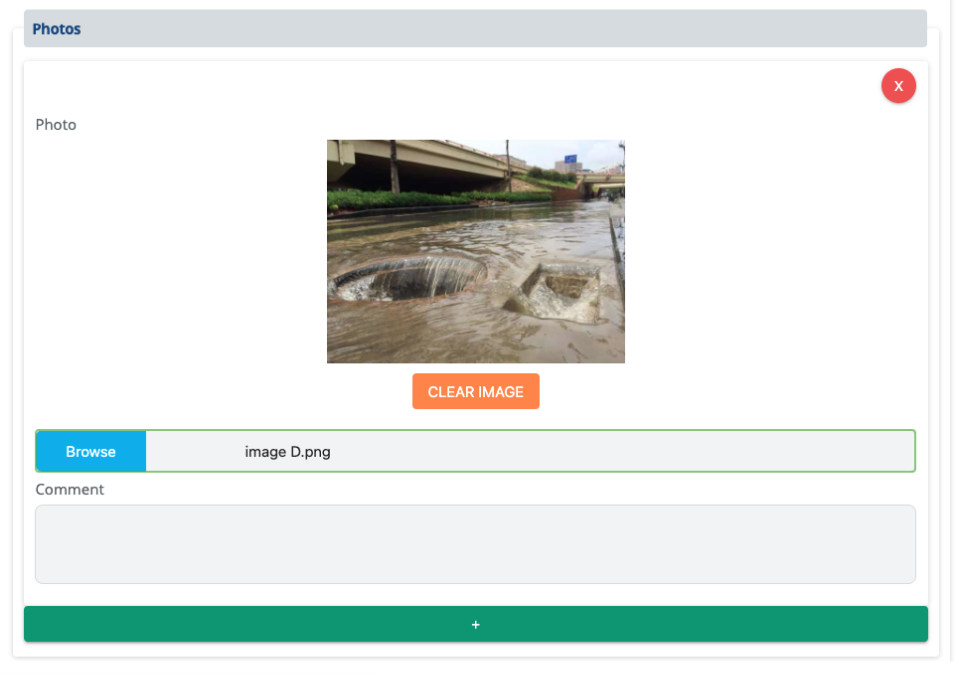
The Image Field can be nested within a Replicatable Field Group to allow for more than one photo to be added.
Features & Limitations:
Features & Components that can be enabled | Add single or multiple photos.Ability to use the device's photo gallery or camera.Text Area, Text Field, Date, Time, and others can be a part of the image field group. Most common is the Text Area (Comments) field. |
|---|---|
Restrictions & Limitations | Cannot be queried into Power BI.Photos from a previous inspection cannot show up again on a new report.Can only import photos from the device's gallery/files or use the device's camera to import an image.Accepts jpeg/jpg, png, tif, and raw image files only. |
Signature Field
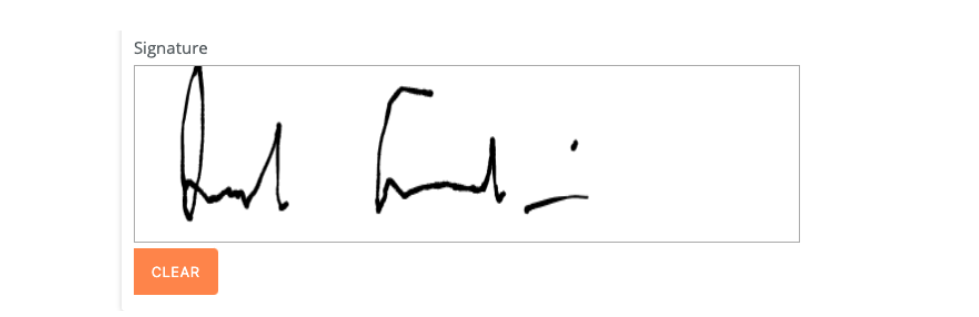
Allows for a user to add a signature if not already pre-filled in. The signature field can also be sent out as part of a capture group where if a signature is needed from another person (can be a non-CloudCompli user) a signature can be requested via the recipient's email.
Features & Limitations:
Features & Components that can be enabled | Signature can be captured from other users outside of CloudCompli.The user’s signature can be pre-filled from the user's profile page. |
|---|---|
Restrictions & Limitations | Cannot be queried into Power BI.Signature cannot be uploaded from other sources. |
Date Field
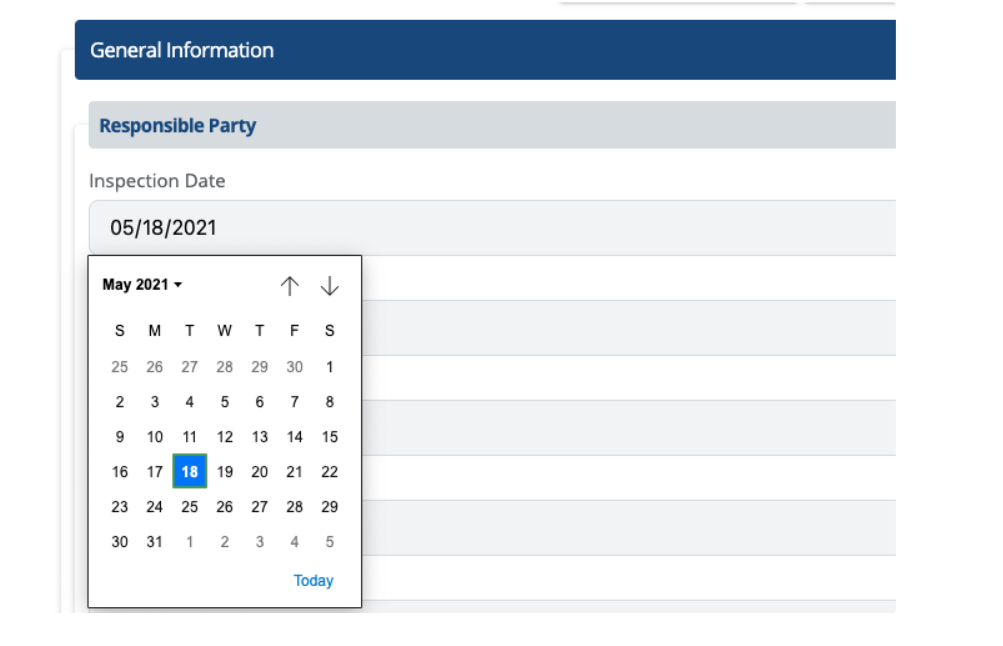
Retrieve Date stamp in MM/DD/YYYY format. A calendar is available when selecting a date. Autofill options are available – such as current date, last inspection date, etc. (see Pre-pop/ Auto Fill data section below).
Time Field
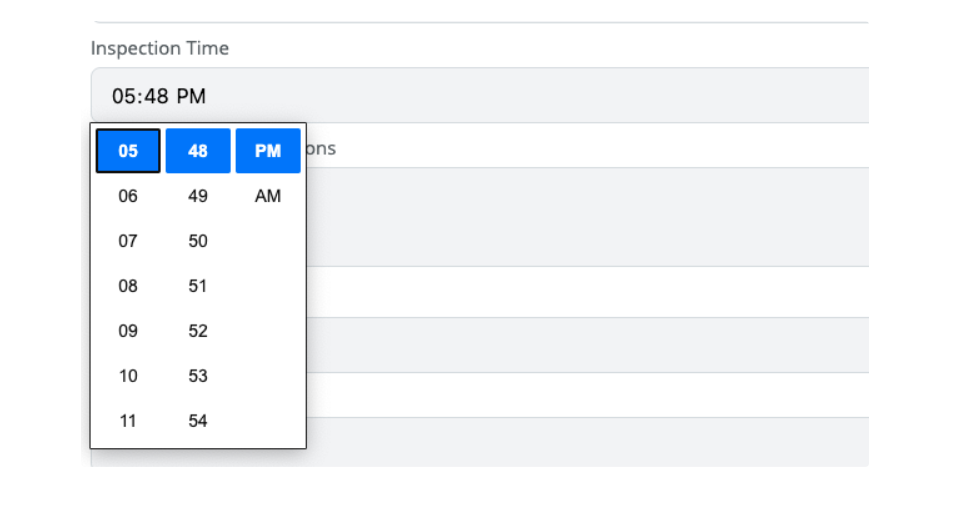
Retrieve Timestamp in HH: MM AM/PM format. The quick select tool is also available when choosing a time. Autofill options are available – such as current time, time since last qualifying rain event, etc. (see Pre-pop/ Auto Fill data section below).
Hidden Field
See the list of Pre-pop/Autofill data fields below that can be hidden on the Form Input.
Geographic Coordinates Field
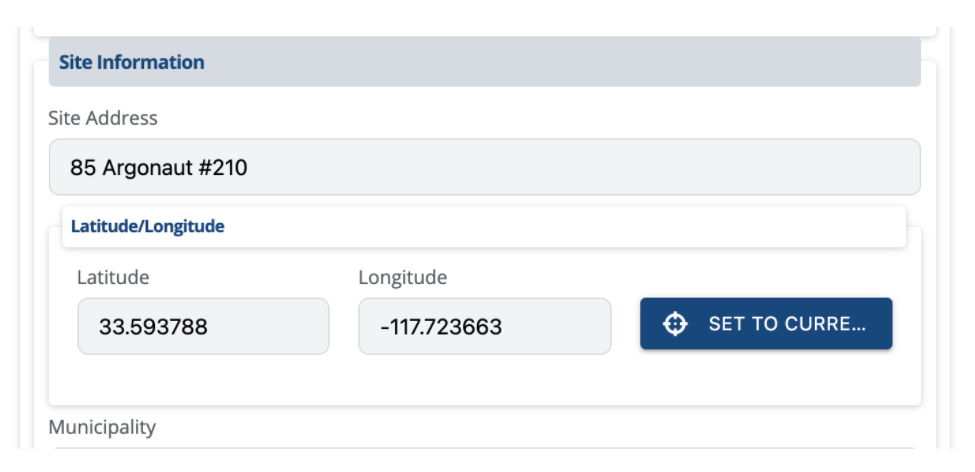
Capture GPS coordinates on the spot or manually enter the lat and long into the field. This field is used to reveal coordinates in the form output or PDF copy. BMP implementations and deficiency components already include a coordinate field within the composite.
Features & Limitations:
Features & Components that can be enabled | Coordinate capture available on any mobile and desktop device.Can be nested with replicatable field groups for multiple coordinate entries.Offers a unique key for Power BI querying. |
|---|---|
Restrictions & Limitations | Device and/or browser must have permission to access your site. |
Composite Component Field Groups: In-Depth
Like the component fields, the composite component fields pertain to a group that has multiple component fields within the same group field. These composite fields can be replicated and customized to an extent. The technology behind these composites behaves uniquely unlike the component fields above. They have a post-action behavior where data is shared across the CloudCompli system. Some post-action features include deficiency (corrective actions) tracking, BMP implementations, due dates, resolutions, enforcement actions, analytics, etc.
Deficiency Field Group
The Deficiency Field Group allows the user to add and/or resolve an action item that needs immediate attention. Manage deficiencies through a report and create and resolve them within the same report (for when they are resolved during an inspection).
Do note, CloudCompli uses the terminology “Deficiency“ to highlight an action item that needs some attention and response. Other terminologies for a deficiency commonly used are Corrective Actions, Maintenance Required, etc.
Post-Action Technology – When a deficiency is created within a report, it interacts with other components within the CloudCompli system. Such components include but are not limited to analytics, notifications, due dates, etc.
Set a due date or priority level to ensure deficiencies are being addressed in a timely matter. Stay on top of your project’s compliance by managing deficiencies efficiently.
Sample of a Deficiency Field Group toggle button:
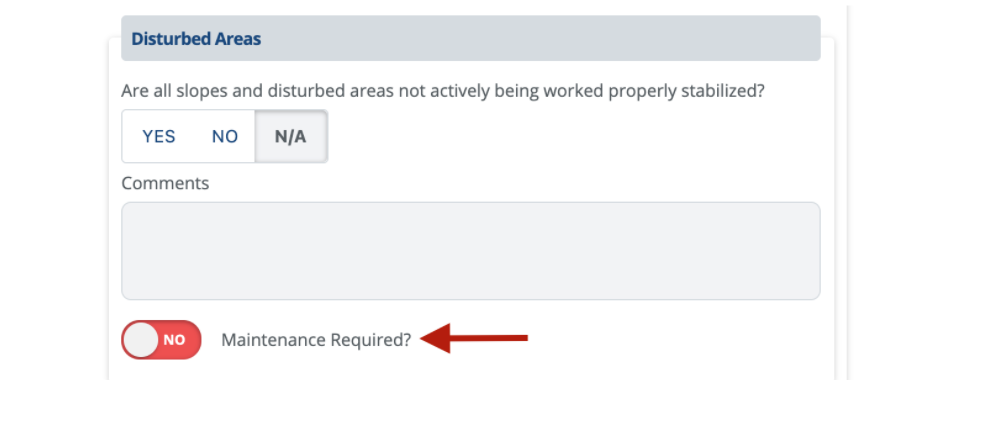
The deficiency composite will start with a Yes/No toggle button. The description of a deficiency can be renamed. In this case, “Maintenance Required?” is used instead.
Typically, deficiency composites work well with each BMP or inspection checklist question. This ensures that the checklist item is satisfactory or requires further action.
If toggled yes, the user will be greeted with a group of fields or a workflow process. The workflow process looks like the following:
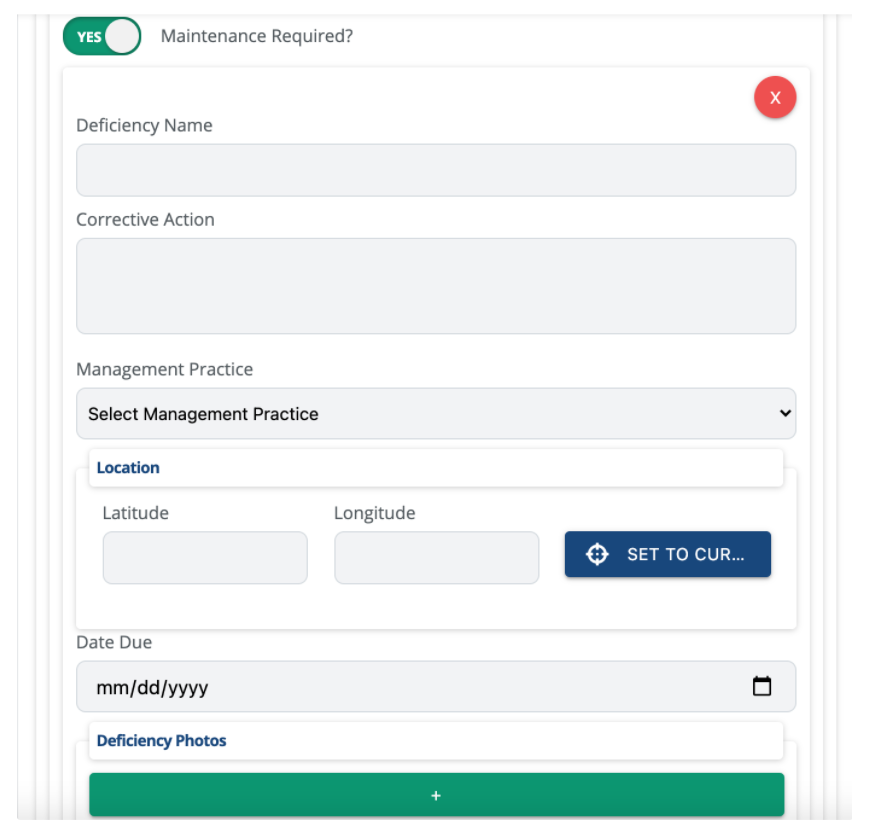
Note: certain fields within the deficiency composite can be modified or renamed. The sample above does not show all fields available.
The deficiency composite allows the user to add multiple deficiencies at once. It also allows the user to upload multiple photos per deficiency.
Customizable and available fields for the deficiency composite are as follows:
Deficiency Name | Title can be renamed.Text field - max 200 characters (Ideal for header, title, short description).Cannot be disabled. |
|---|---|
Description | Title can be renamed.Text Area Field - max 700 characters (Ideal for a longer description, comments, or notes). |
Corrective Action | Title can be renamed.Text Area Field - max 700 characters (Ideal for a longer description, comments, or notes). |
Management Practice | Title can be renamed.Select Field or dropdown [single select]. Reveals BMP Categories to select from that are predefined on the settings page.Choose which BMP categories to reveal. |
Level | Title can be renamed.Select Field or dropdown [single select]. Drives in predefined priority level or due date configured from the settings page.Choose between Level or Date Due. |
Site (GPS coordinates) | Title can be renamed.Geographic Coordinates Field. Retrieves lat and long.Cannot be disabled. |
Date Identified | Title can be renamed.Current date is set by default or manual entry. |
Date Due | Title can be renamed.Manual data entry.Choose between Level or Date Due. |
Date Resolved | Resolves the deficiency when the date is added. |
Resolution Notes | Title can be renamed.Text Area Field - max 700 characters (Ideal for a longer description, comments, or notes).ONLY add resolution notes if Date Resolved is added. |
Deficiency Photos | Title can be renamed.See Restritcions and Limititations below for more information.Cannot be disabled. |
Photo Comment | Title can be renamed.Text Area Field - max 700 characters (Ideal for a longer description, comments, or notes). |
Photo Date | Title can be renamed. |
Photo Time | Title can be renamed. |
Features & Limitations:
Features & Components that can be enabled | Customizable.Conditionally show deficiency composite based on a previous response.Can be nested/integrated with field groups. Great way to address any deficiencies for each inspection question/item.Post-action web app system interaction.Show previous unresolved deficiencies on new inspection reports.Resolve deficiencies within a report. |
|---|---|
Restrictions & Limitations | Backdating or future dating deficiencies may cause deficiency tracking issues.Cannot be integrated with another Replicatable Field Group. The Deficiency Field Group already has a built-in replicatable field group.Cannot add additional fields not mentioned in the list above.Although there is no limit to how many deficiencies can be created per composite, be wary that too many deficiencies with a high amount of text/data can corrupt the form output or cause uploading issues. Try spreading out deficiencies or limiting the number of deficiencies added to a single component to avoid system issues.Too many photos with a high amount of text/data can also cause uploading or system issues. Try limiting the number of photos added to a composite or try spreading out the photos with new deficiency composites if necessary. |
BMP Implementation Field Group with Nested Deficiencies
Like the Deficiency Field Group, the BMP Implementation Field Group is composed of fields within the composite. The BMP Implementation Field addresses a Best Management Practice that is in place at a site. Users have the ability to add multiple BMPs with deficiencies as well as photos.
Unlike the Deficiency Composite, the BMP Implementation Field Group cannot be intertwined between checklist items or questions.
Post-Action Technology – When a BMP Field Group is created within a report, it interacts with other components within the CloudCompli system. Such components include but are not limited to analytics, due dates, deficiency tracking, impact score on the watershed, etc.
Sample of a BMP Implementation Field Group
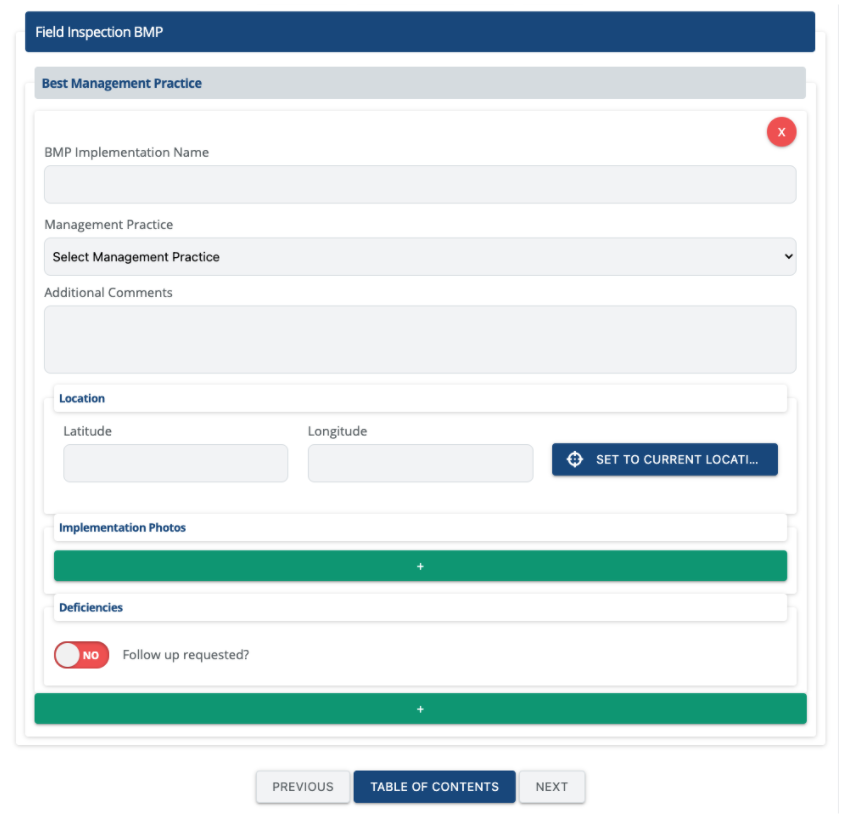
Note: certain fields within the BMP composite can be modified or renamed. The sample above does not show all fields available.
Customizable and available fields for the deficiency composite are as follows:
BMP Implementation Name | Title can be renamed.Text Field - max 200 characters (Ideal for header, title, short description).Cannot be disabled. |
|---|---|
Management Practice | Title can be renamed.Select Field or dropdown [single select]. Reveals BMP Categories to select from that are predefined on the settings page.Choose which BMP categories to reveal.Cannot be disabled. |
Description | Title can be renamed.Text Area Field - max 700 characters (Ideal for a longer description, comments, or notes). |
Effectiveness Rating | Title can be renamed.Select Field or dropdown [single select]. Drives in predefined BMP rating from the settings page. (e.g., Functional, At Risk, Poor, Deficient, etc.). |
Site Notes | Title can be renamed.Text Area Field - max 700 characters (Ideal for a longer description, comments, or notes). |
Site (GPS Coordinates) | Title can be renamed.Geographic Coordinates Field. Retrieves lat and long.Cannot be disabled. |
Implementation Photos | Title can be renamed.See Restritcions and Limititations below for more information.Cannot be disabled. |
Photos | Title can be renamed. |
Comment | Title can be renamed. |
Deficiencies | See available fields in the Deficiency Field Group section.See Restritcions and Limititations below for more information.Cannot be disabled. |
Features & Limitations:
Features & Components that can be enabled | Customizable.BMP effectiveness and impact on the watershed analytics.Post-action web app system interaction.Nested Deficiency Field Group workflow.Retains BMP Implementations from previous inspections on new inspections unless they are closed out.Resolve deficiencies within a BMP Implementation. |
|---|---|
Restrictions & Limitations | Backdating or future dating deficiencies may cause deficiency tracking issues.Cannot be integrated with another Replicatable Field Group. The BMP Implementation Field Group already has a built-in replicatable field group.Cannot add additional fields not mentioned in the list above.Deficiencies - Although there is no limit to how many deficiencies can be created per composite, be wary that too many deficiencies with a high amount of text/data can corrupt the form output or cause uploading issues. Try spreading out deficiencies or limiting the number of deficiencies added to a single component to avoid system issues.Implementation Photots - Too many photos with a high amount of text/data can also cause uploading or system issues. Try limiting the number of photos added to a composite or try spreading out the photos with new deficiency composites if necessary. |
Monitoring/Sampling Locations Field Group
The Monitoring/Sampling Locations Field Group allows the user to enter multiple samples for a project per site that needs sampling. This Field Group is composed of sampling site types, constituents, analysis methods and types, flow rate, and more.
If a site requires sampling, this Field Group allows the user to add sampling data and integrate it within a report. Simultaneously, this field group creates monitoring records to track sampling data on a project.
This Sampling Field Group can be intertwined within a custom inspection report or used exclusively on a custom sampling form.
Sample of a Monitoring Field Group workflow with a Discharge Points site type.
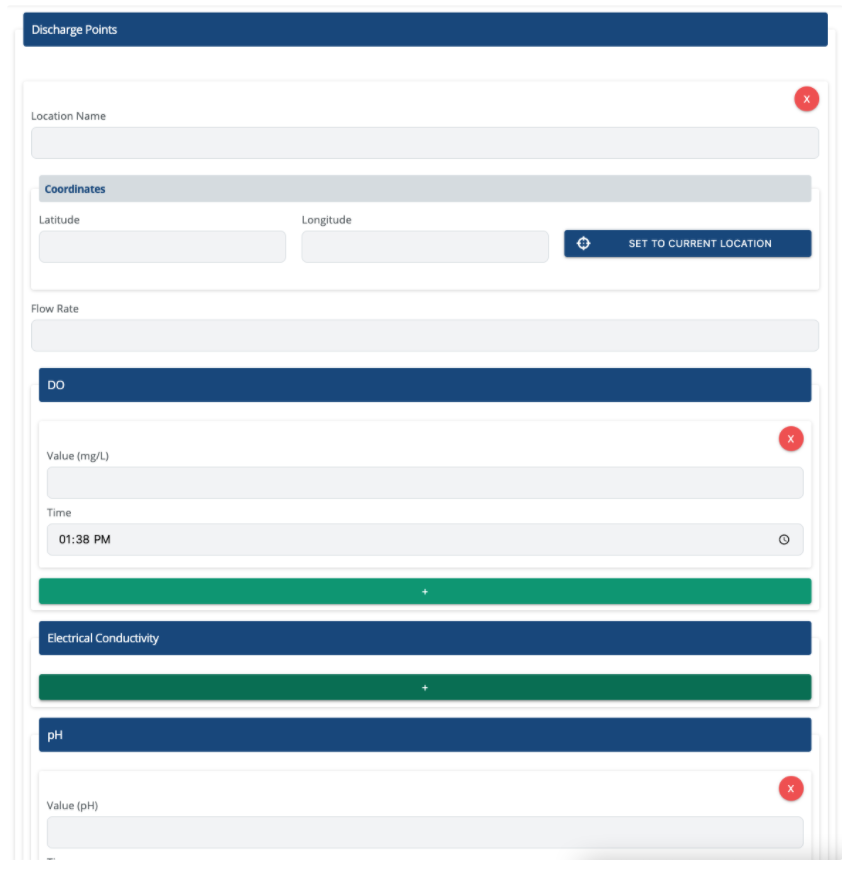
Note: the sample above has the constituents DO, Electric Conductivity, pH, etc. Additional constituents can be added or modified by navigating to the settings page.
Monitoring Site Types can only be added by system administrators. Other Monitoring Site Types examples are:
Discharge Points
Drainage Area
Storage & Containment Area
Run On
Commonly used Constituents:
pH | pH |
|---|---|
Turbidity | NTU |
Temperature | C |
Additional constituents can be enabled or added during configuration. They can also be added by an administrator through the settings page. | |
Analysis Method & Analysis Type fields are available for sampling. | |
Features & Limitations:
Features & Components that can be enabled | Customizable.Post-action web app system interaction. Tracks monitoring data per-project basis.Replicatable Field Group. Allows a user to enter multiple sampling sites as well as multiple samples per site.Retains previous sampling sites and previous constituents used per project when creating a new inspection. |
|---|---|
Restrictions & Limitations | Cannot be integrated with another Replicatable Field Group. The Monitoring Field Group already has a built-in replicatable field group.Cannot add additional fields not shown or mentioned above.Conditional to reveal this field group is not allowed.Recycles previous sampling sites. No need to recreate another sampling site if it already exists. |
Enforcement Actions Field Group
The Enforcement Actions Field Group is composed of fields tailored to a specific violation. This field group can be integrated within an inspection report or violation report if an inspection is non-compliant and a violation or enforcement needs to be enforced. The Enforcement Action is a great tool to keep tabs on a specific project to ensure the violation is addressed.
Post-Action Technology – When an Enforcement is created within a report, it interacts with other components within the CloudCompli system. These components include enforcement analytics and tracking.
Required Actions - A violation can be issued but an action may be necessary. The Enforcement Field Group allows the user to issue a mandatory response to a violation.
Sample of an Enforcement Field Group workflow:
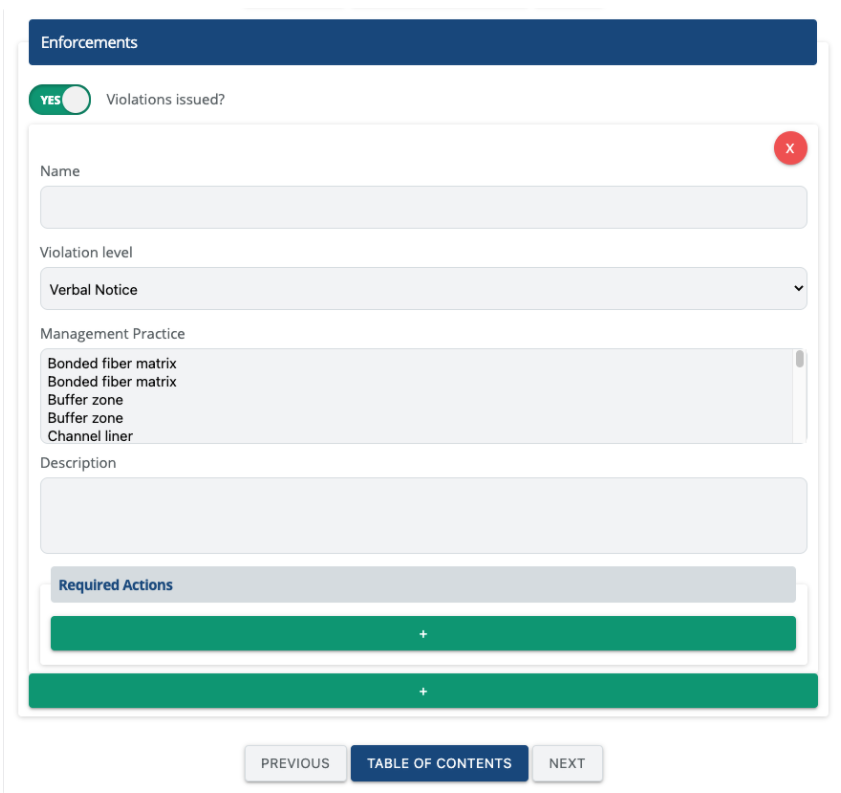
A violation can be given a name, level (can be added within the settings page), Management Practices, and Description. A follow-up response or required action can be included with the violation. Multiple violations can be added along with multiple required actions per violation.
Sample of the Required Actions workflow within and Enforcement:
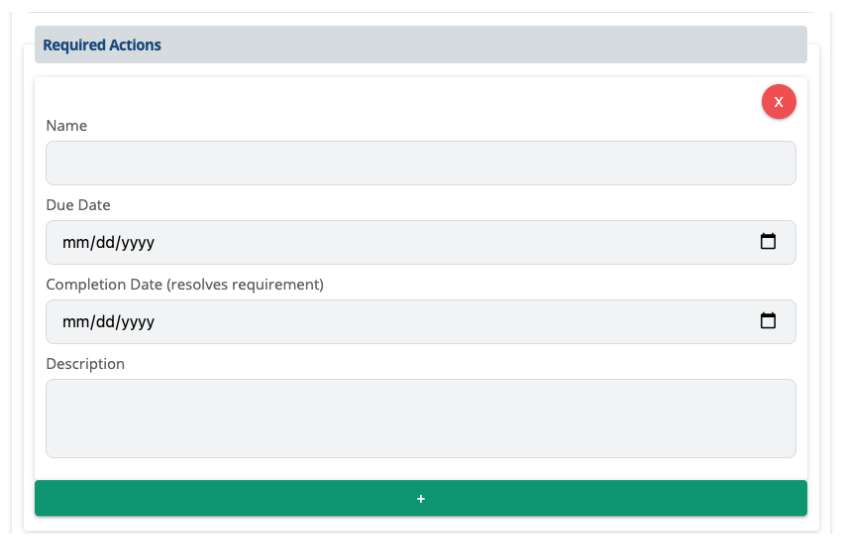
Customizable and available fields for this composite are as follows:
Name | Title can be renamed.Text Field - max 200 characters (Ideal for header, title, short description).Cannot be disabled. |
|---|---|
Violation Level | Title can be renamed.Select Field or dropdown [single select]. Predefined Enforcement levels are retrieved from the settings page. |
Management Practice | Title can be renamed.Select Field or dropdown [single select]. Reveals BMP Categories to select from that are predefined on the settings page.Choose which BMP categories to reveal. |
Description | Title can be renamed.Text Area Field - max 700 characters (Ideal for a longer description, comments, or notes). |
Required Actions | Text Field - max 200 characters (Ideal for header, title, short description).Cannot be disabled. |
Name | Text Field - max 200 characters (Ideal for header, title, short description).Cannot be disabled. |
Due Date | Drives in due date for compliance.Cannot be disabled. |
Completion Date | Resolves Required Action when date is added.Cannot be disabled. |
Description | Text Area Field - max 700 characters (Ideal for a longer description, comments, or notes).Cannot be disabled. |
Features & Limitations:
Features & Components that can be enabled | Limited Customizability.Post-action web app system interaction. Tracks violations/enforcements per project basis to ensure the project is in compliance.Replicatable Field Group. Allows users to enter multiple enforcements as well as multiple actions required per inspection.Retains previous violation issues per project when creating a new inspection unless closed out by a user. |
|---|---|
Restrictions & Limitations | Cannot be integrated with another Replicatable Field Group. The Enforcement Field Group already has a built-in replicatable field group.Cannot add additional fields not specified above.Conditional to reveal this field group is not allowed.This tool DOES NOT generate a violation letter or form. The Enforcement Field Group can be integrated as part of a custom report. |
User Equipment Field Group
The User Equipment Field Group allows the user to enter personal sampling equipment information to keep track of equipment data. Manufacturer name and model, last calibration date, and time are some fields that are included within this field group,
Post-Action Technology – When a User Field Equipment is created within a report, it interacts with other components within the CloudCompli system. These components include keeping a list of historical equipment calibrations per project.
The User Equipment Field Group consists of the following fields:
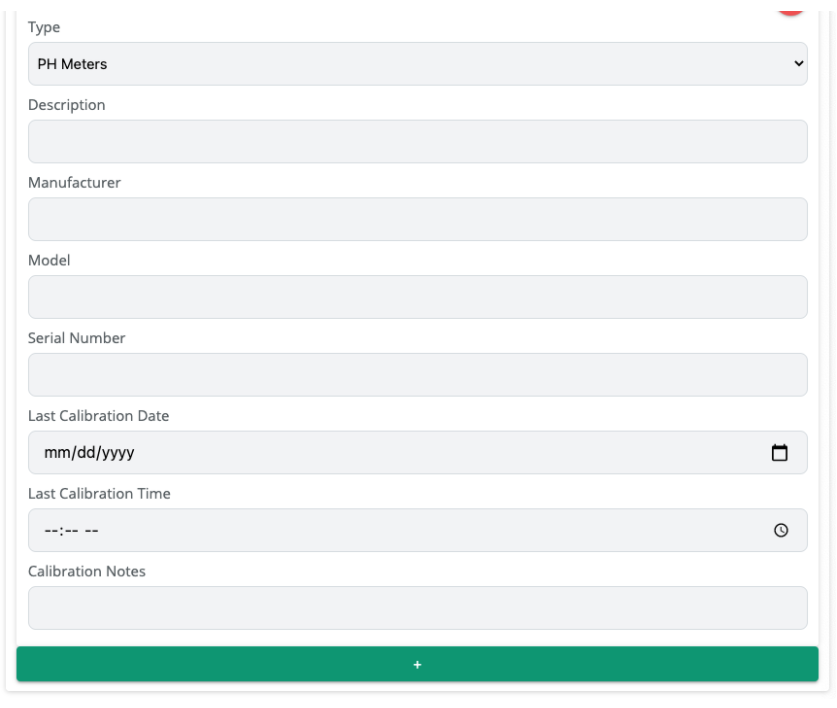
Multiple equipment entries are allowed.
Customizable and available fields for this composite are as follows:
Type | Title can be renamed.Text Field - max 200 characters (Ideal for header, title, short description).Cannot be disabled. |
|---|---|
Description | Title can be renamed.Text Field - max 200 characters (Ideal for header, title, short description). |
Manufacturer | Title can be renamed.Text Field - max 200 characters (Ideal for header, title, short description). |
Model | Title can be renamed.Text Field - max 200 characters (Ideal for header, title, short description). |
Serial Number | Title can be renamed.Text Field - max 200 characters (Ideal for header, title, short description). |
Last Calibration Date | Date Field. |
Last Calibration Time | Time Field. |
Calibration Notes | Title can be renamed.Text Field - max 200 characters (Ideal for header, title, short description). |
Features & Limitations:
Features & Components that can be enabled | Customizable.Post-action web app system interaction. Keeps a list of historical equipment calibrations.Replicatable Field Group. Allows users to enter multiple equipment entries.Retains previous equipment calibration per project when creating a new inspection. |
|---|---|
Restrictions & Limitations | Cannot be integrated with another Replicatable Field Group. The Equipment Field Group already has a built-in Replicatable Field Group.Cannot add additional fields not specified above.Conditional to reveal this field group is not allowed. |
Schedule Events
Set a reminder or event for a project within an inspection. This tool, in most cases, is ideal for internal purposes only and not to be revealed on the Form Output.
Set permit expiration reminders, assign a user to oversee the project, and set monthly or weekly site reminders.
Post-Action Technology – When an event is added within a report, it interacts with other components within the CloudCompli system. Notifications and events can be seen through the Event Scheduler program from the navigation panel.
Event Schedule Example:
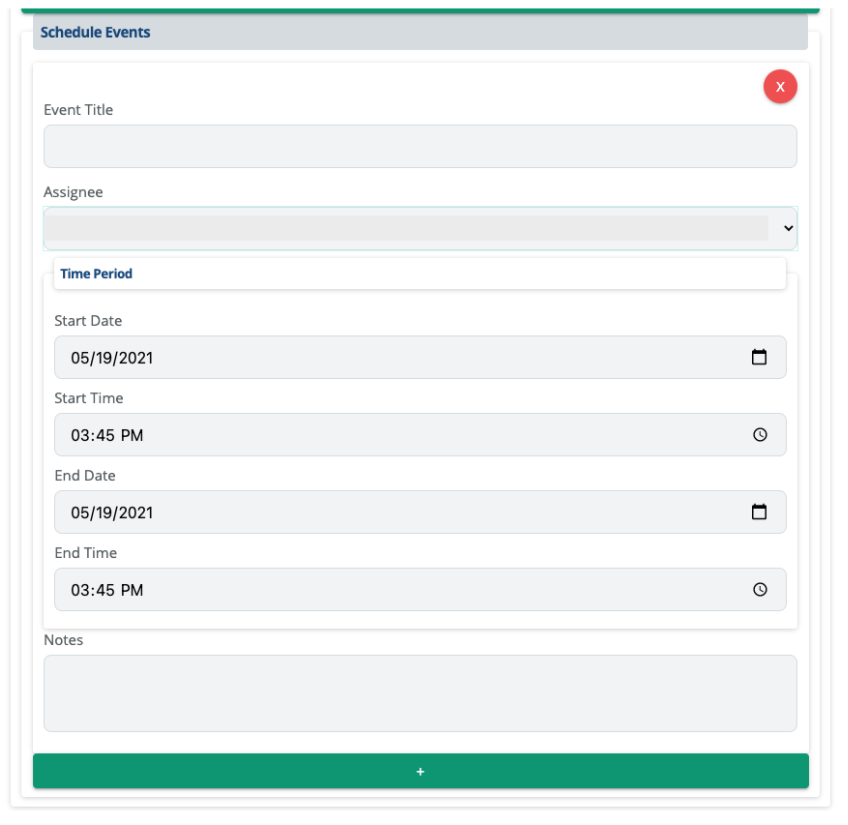
Customizable and available fields for this composite are as follows:
Event Title | Title can be renamed.Text Field - max 200 characters (Ideal for header, title, short description).Cannot be disabled. |
|---|---|
Assignee | Title can be renamed.Select Field or dropdown [single select]. Select from users.Cannot be disabled. |
Time Period | Cannot be disabled. |
Start Date | Title can be renamed.Date Field.Cannot be disabled. |
Start Time | Title can be renamed.Time Field.Cannot be disabled. |
End date | Title can be renamed.Date Field. |
End Time | Title can be renamed.Time Field. |
Notes | Title can be renamed.Text Field - max 200 characters (Ideal for header, title, short description). |
Features & Limitations:
Features & Components that can be enabled | Limited Customizability.Post-action web app system interaction. Creates reminders or events that can be accessed through the Event Scheduler program.Replicatable Field Group. Allows users to enter multiple events.Retains previous events per project when creating a new inspection. |
|---|---|
Restrictions & Limitations | Cannot be integrated with another Replicatable Field Group. The Event Scheduler already has a built-in Replicatable Field Group.Cannot add additional fields not specified above. |
Field Components - Summary
Component Fields | ||||||
|---|---|---|---|---|---|---|
| Customizable | Replicatable | Capture Group | Post Action Behavior | Auto-fill/ Pre-fill from the Previous Report | Tool Tip/ Info Bar |
Form Page | X |
|
|
|
|
|
Field Group | X | X | X |
| X |
|
Replicatable Field Group | X | X |
|
| X |
|
Text Field | X |
| X |
| X | X |
Text Area | X |
|
|
| X |
|
Yes/No Boolean (Toggle) | X |
|
|
| X |
|
Yes/No/NA Ternary | X |
|
|
| X |
|
Select Field | X |
|
|
| X |
|
Image Field |
| X |
|
|
|
|
Signature Field |
| X | X | X | X |
|
Date Field |
|
| X |
| X |
|
Time Field |
|
| X |
| X |
|
Hidden Field | X |
|
|
| X |
|
GPS Coordinates Field |
|
|
|
| X |
|
Composite Component Fields | ||||||
Deficiency Field Group | X | X |
| X | X |
|
BMP Implementation Field Group | X | X |
| X | X |
|
Sampling/ Monitoring Field Group | X | X |
| X | X |
|
Enforcement Field Group | X | X |
| X | X |
|
User Equipment Field Group | X | X |
| X | X |
|
Schedule Events |
| X |
| X | X |
|
Pre-pop/ Auto-Fill Data Fields
CloudCompli is all about making the user's workflow process fast and efficient. The Pre-pop technology allows data to automatically pre-fill into a field to save the user time when working on a form. This data can either be retrieved from the details within a project, from previous inspections, from the current date/time/user, etc., or from outstanding measures.
Note that on the initial report, no values will populate since no previous report has been created.
SEE PREPOP SUPPORT ARTICLE FOR MORE INFORMATION
Conditionally Show Input
Reveals additional questions/sections (field groups) and items based on the response from the previous question.
For example, If question 1 is not satisfactory then additional questions will follow.
Sample of Yes/No Questions with conditional behavior. Follow-up questions rely on the previous response.
Note: questions that are conditionally nested with other questions WILL NOT work or function properly when querying data on Power BI.
Tool Tips (Information Description)
An interactive window that displays information about the field in question. A blue “i“ icon will be revealed towards the right. Users can hover over the info icon and see the description.
Currently available on text field components only. Description can be custom, weather station source, or NOAA information.