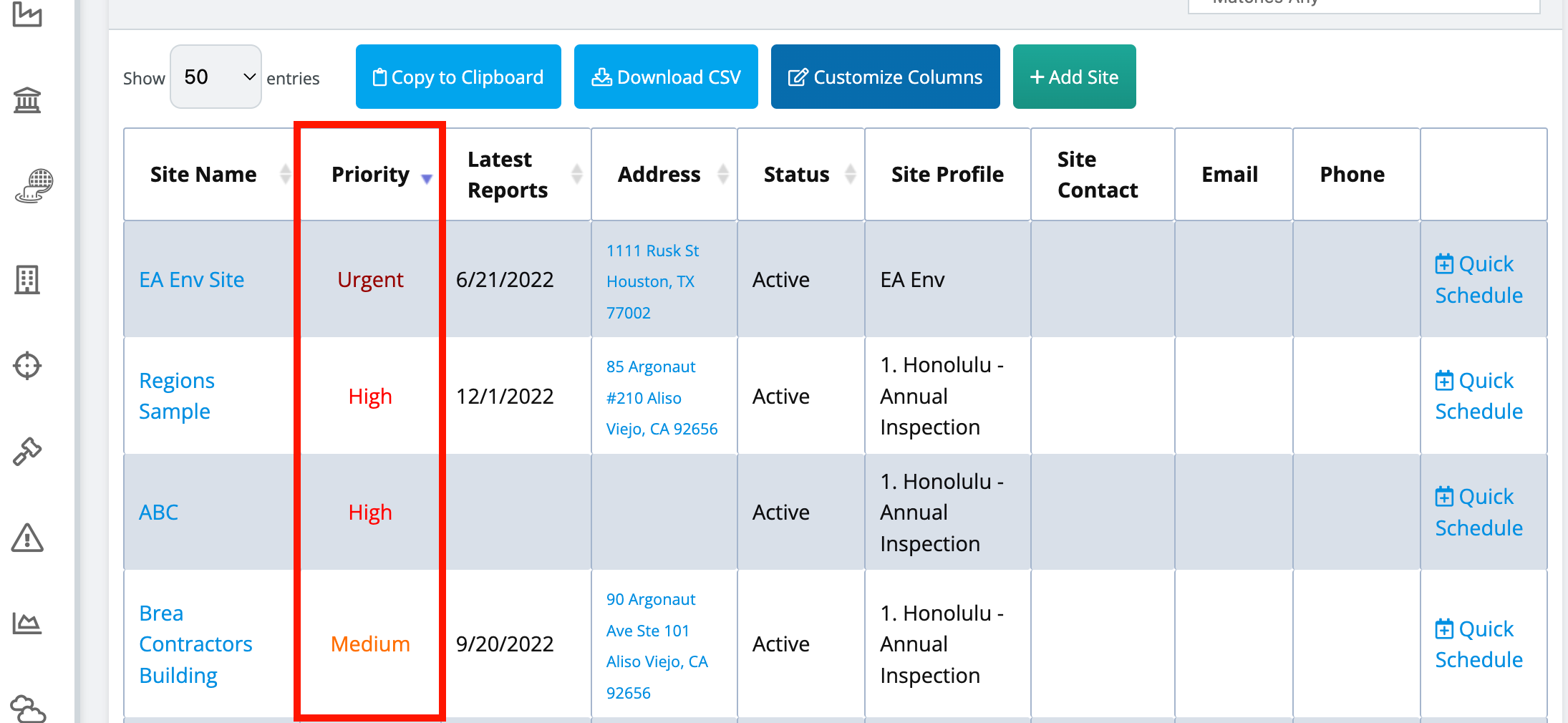

Below is a list of functionalities and limitations for this feature.
Functionalities:
The Priority List allows you to assign sites that need higher attention than others.
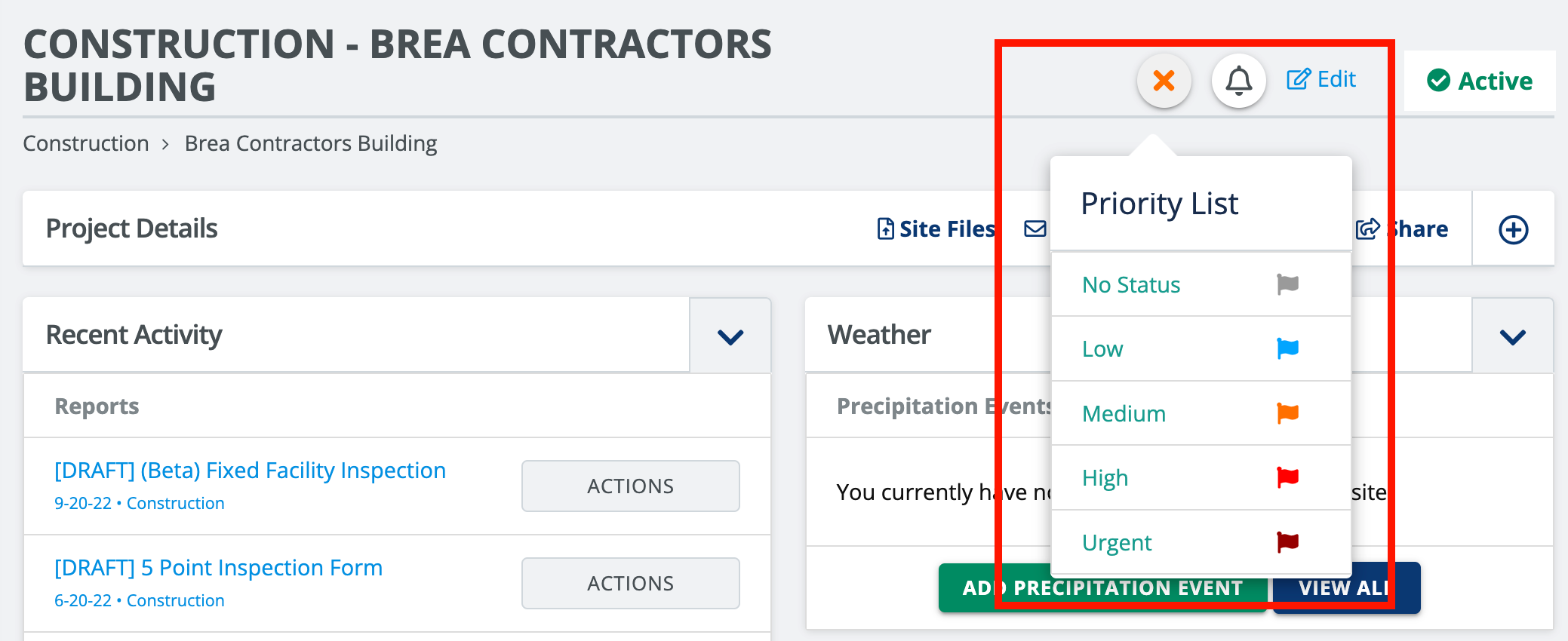
There are 5 statuses to choose from:
No Status (set by default for all sites)
Low
Medium
High
Urgent
The priority level can be filtered by the urgency level on the Site View Page.
Supervisors/admins can indicate which sites require higher attention. Users/inspectors can then organize their sites based on the priority level.
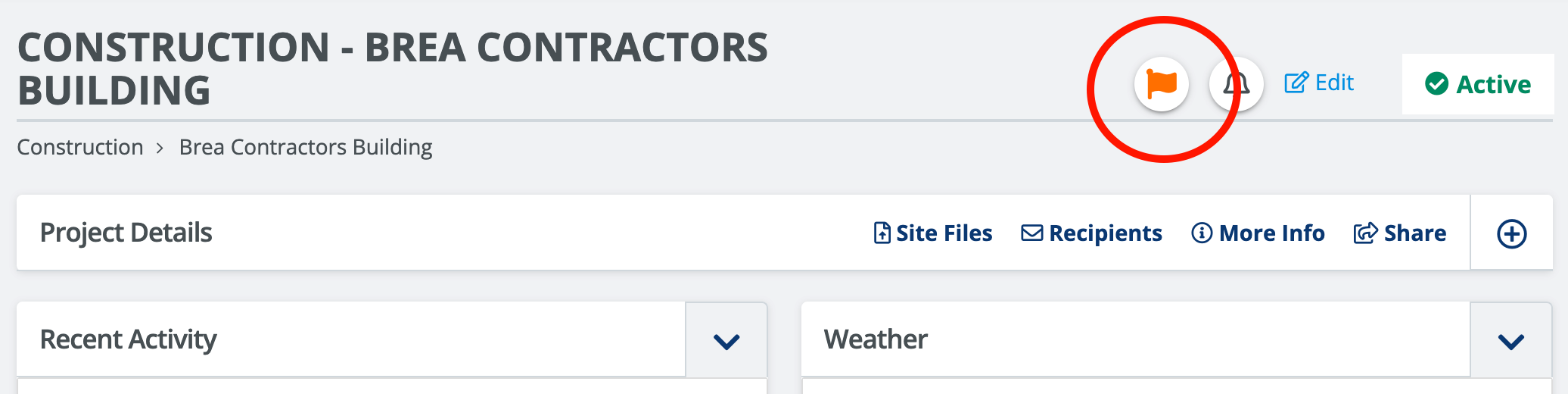
A flag color will show on the top right next to the site's name.
Limitations:
Currently only available on the Web platform and not available on the Mobile Application.
Admin permission is required to assign or modify a priority level to a site.
Priority Levels cannot be renamed.
The priority level column is only available on the site view table for each program type (not currently available for Analytics, Deficiencies, Enforcements, Investigations, Education, and other programs that have filtering options.)
To add a new priority to a site (Admins only) go to the site's Project Details page and then select the grey flag next to the notifications bell icon as seen below.
After assigning a priority level you will notice a flag with a corresponding color that indicates the appropriate priority level.
Priority levels can be organized by urgency level in the site view table for all program types (e.g., Construction, Industrial, etc.).