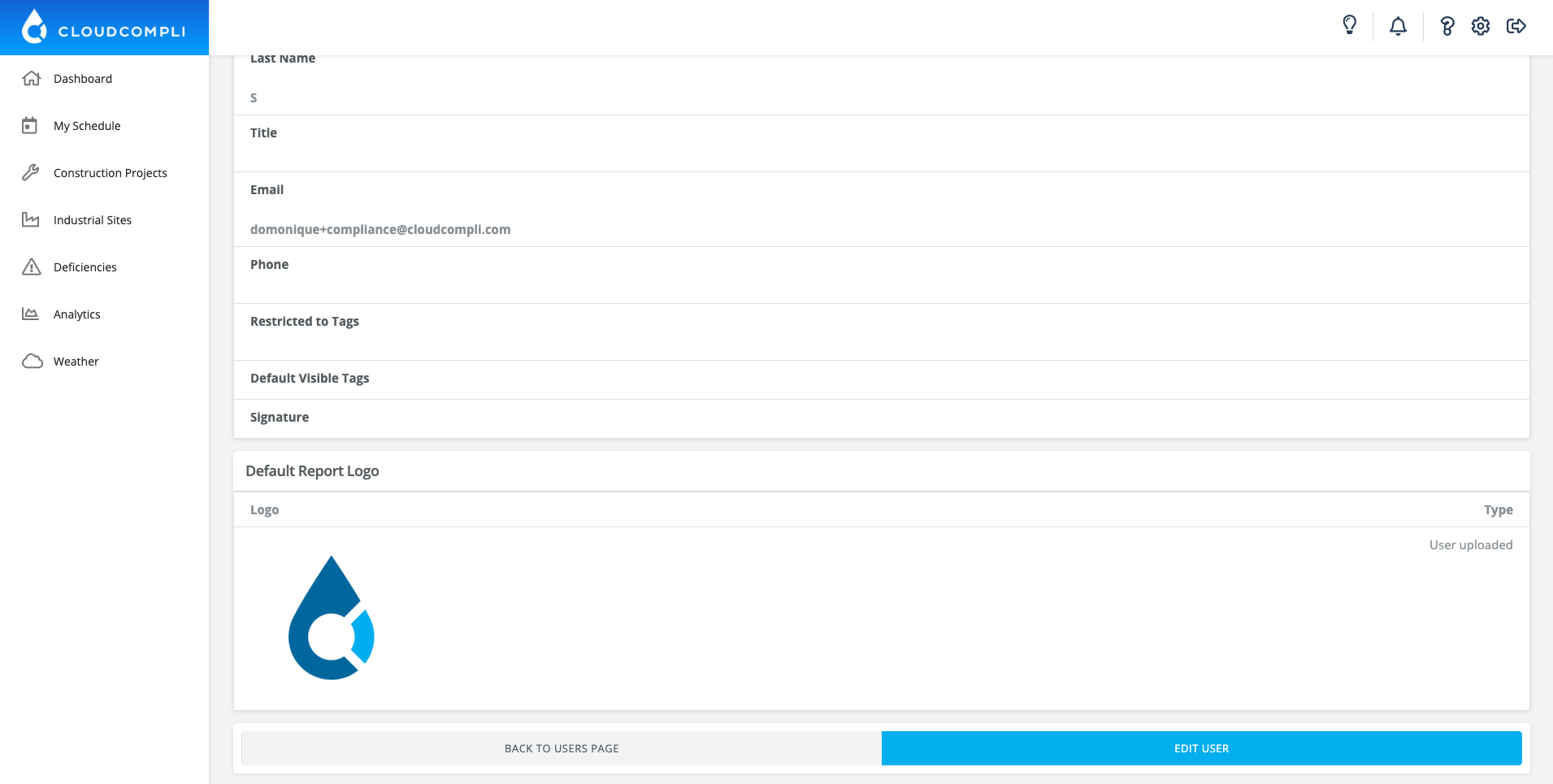

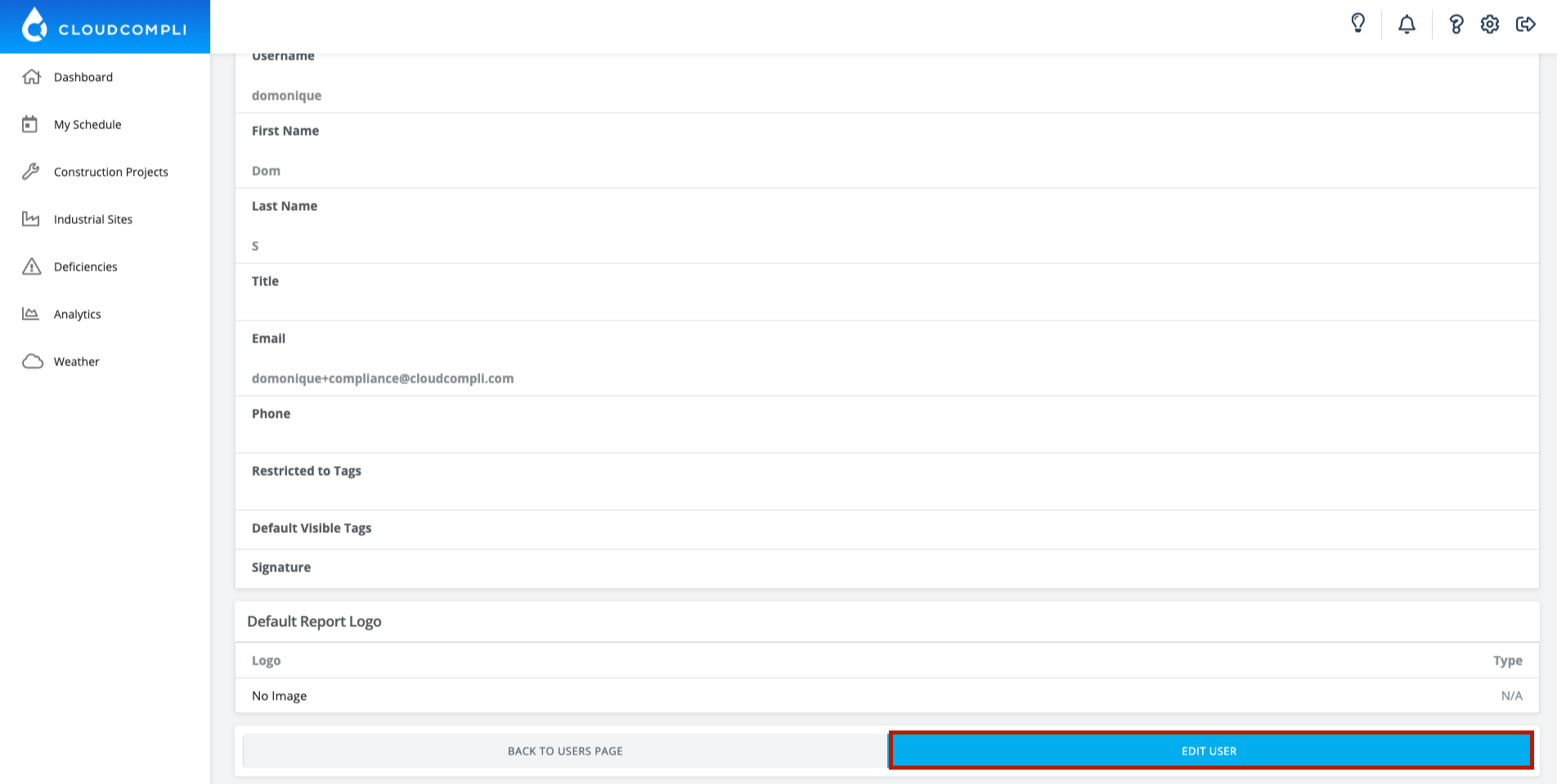
1. Go to "My Profile" in "Settings" and scroll all the way down and click "Edit User"
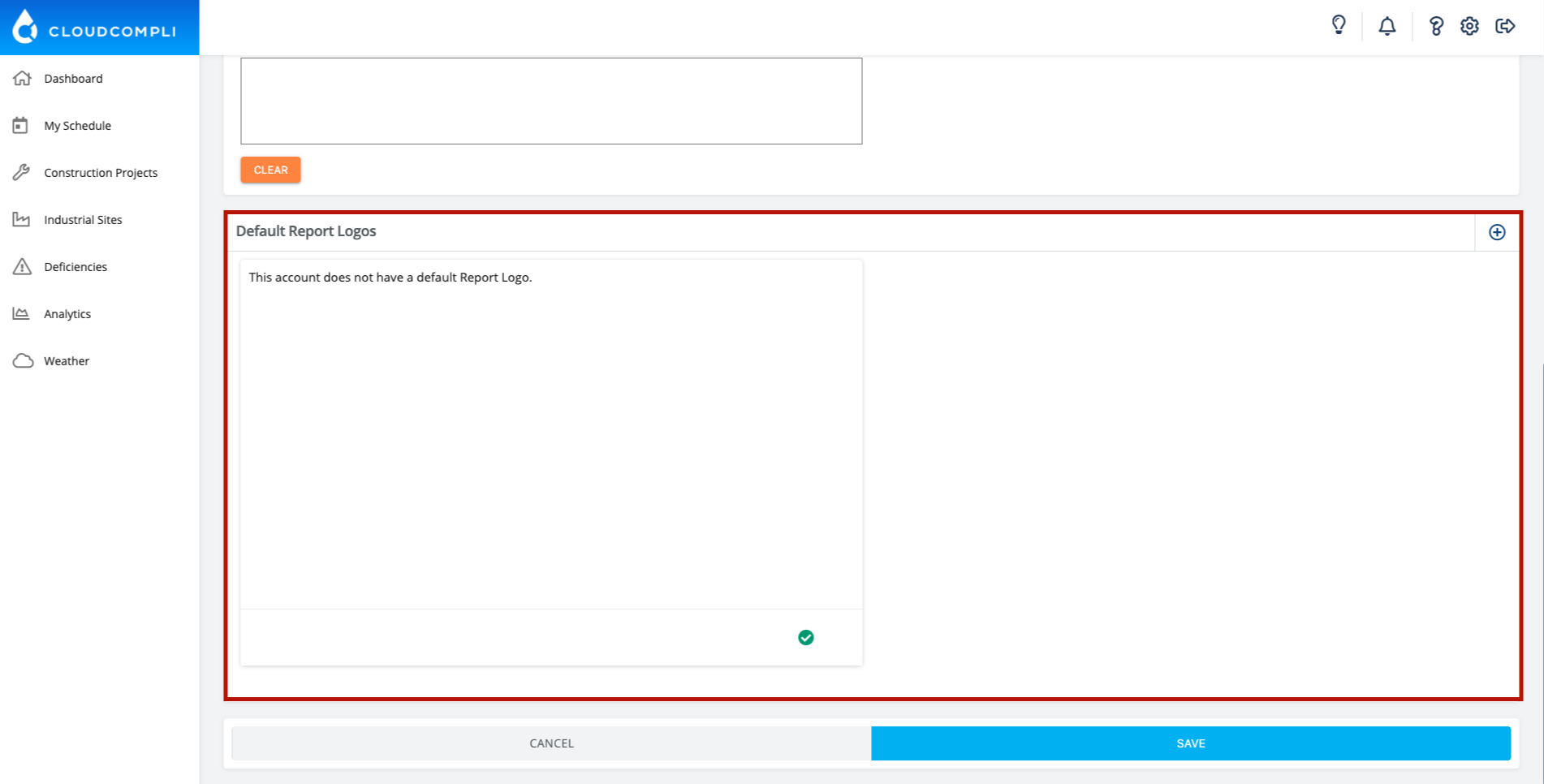
2. Scroll all the way down again and press the "+" in the top right hand corner of "Default Report Logos"
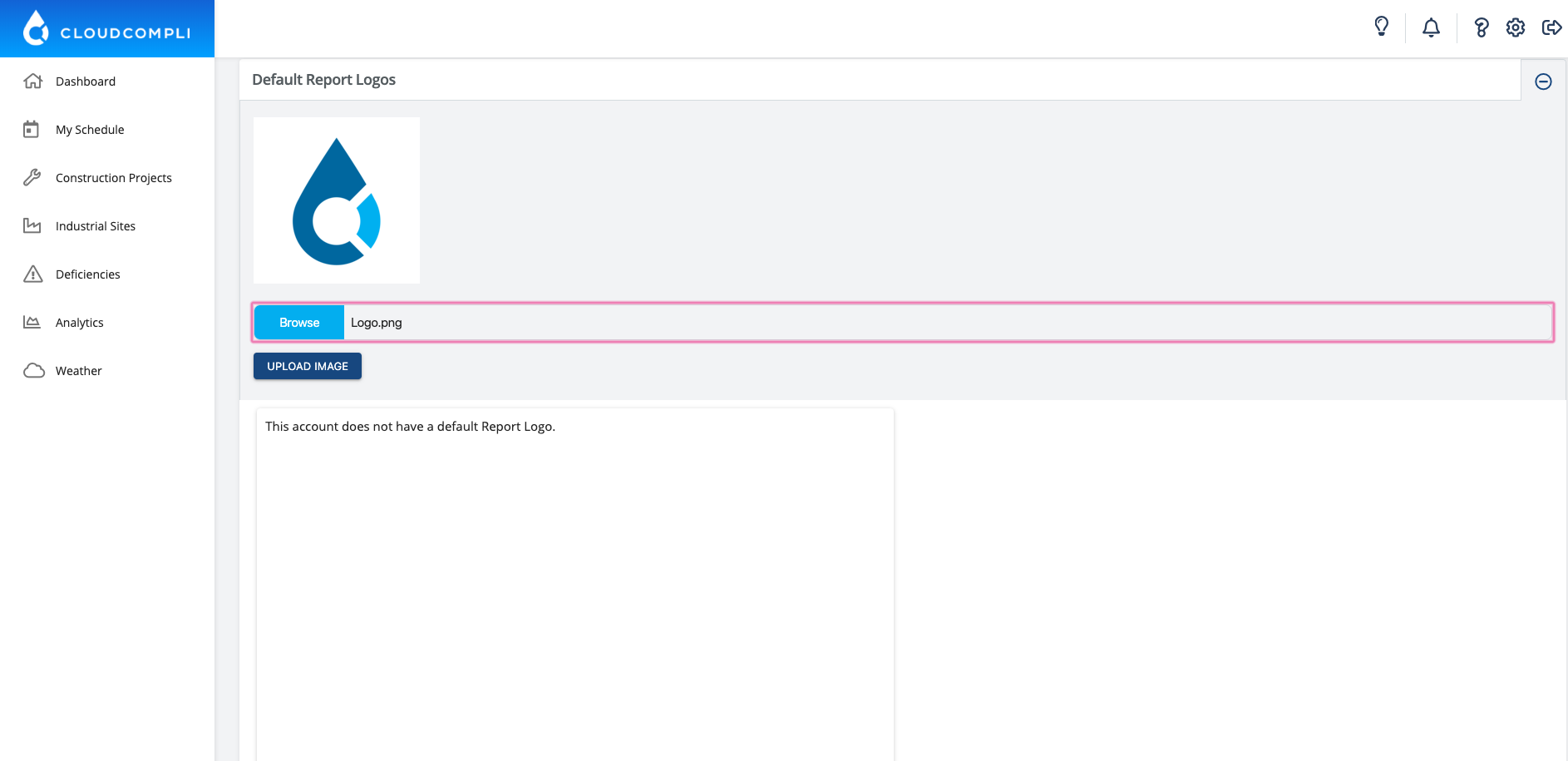
3. Press "Browse" and select your image. Don't forget to click the "Upload Image" button underneath "Browse" to save it
4. Once you upload the image, it will populate at the bottom of the screen in the bottom right hand corner
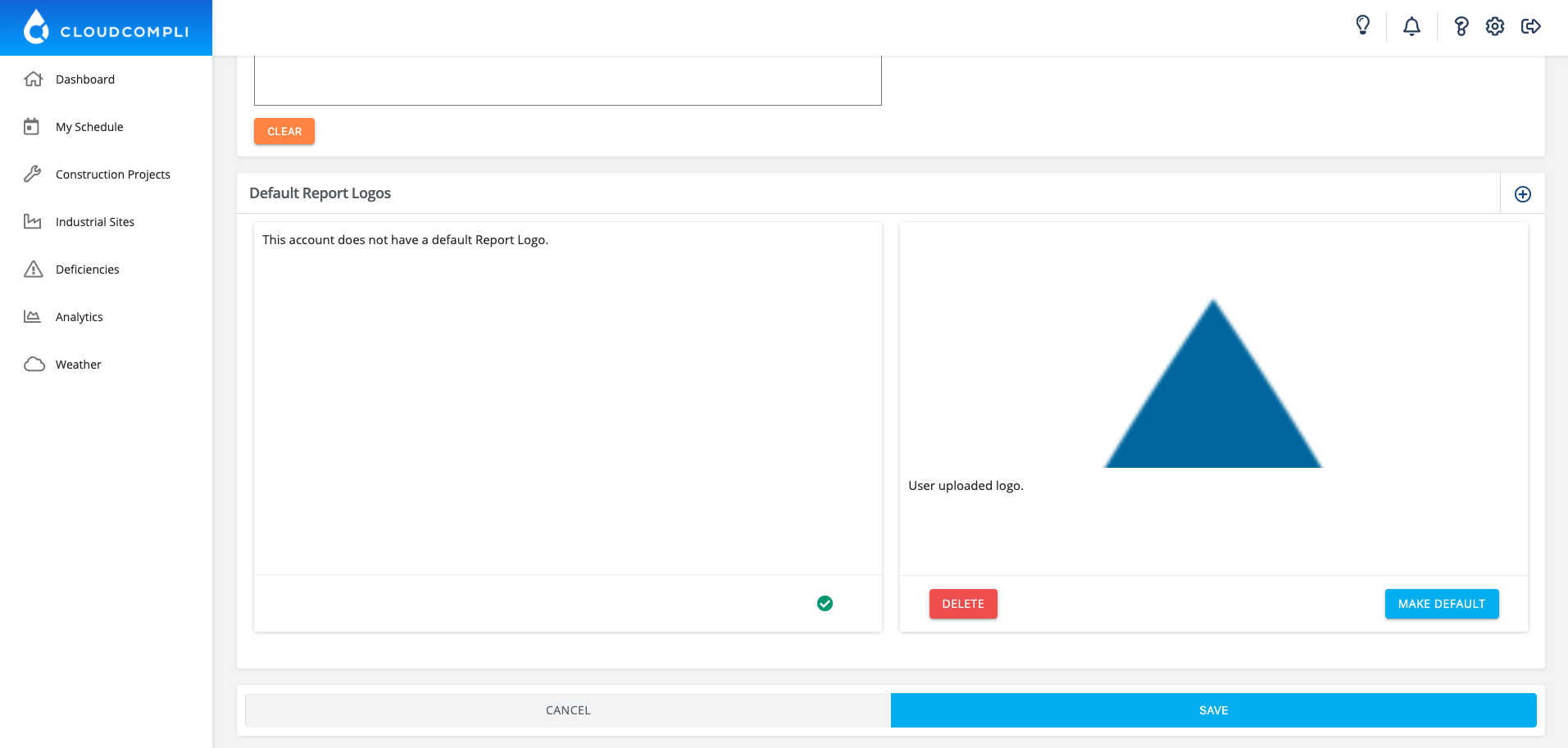
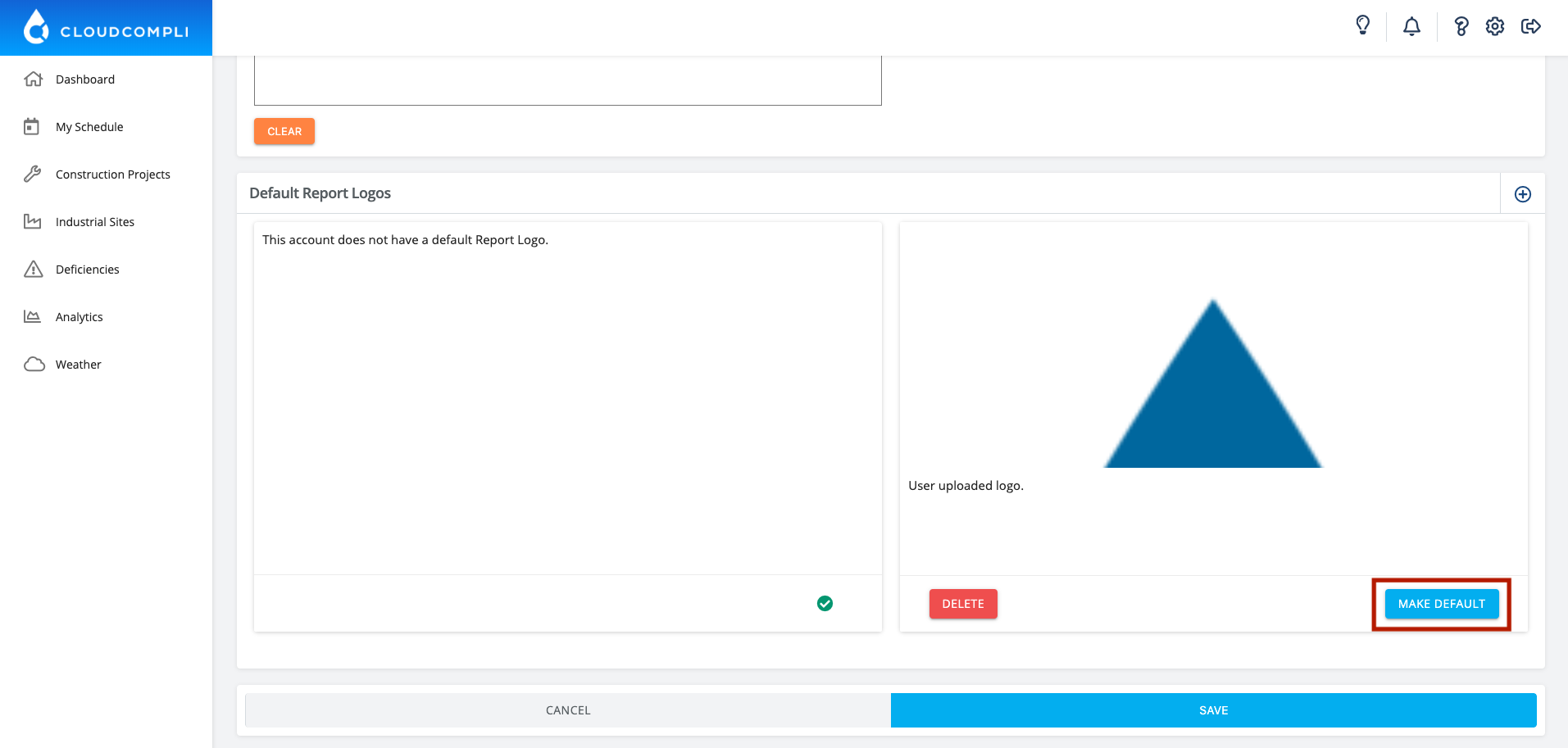
5. Click the "Make Default" button on the bottom right, the green check mark will show up underneath the logo.
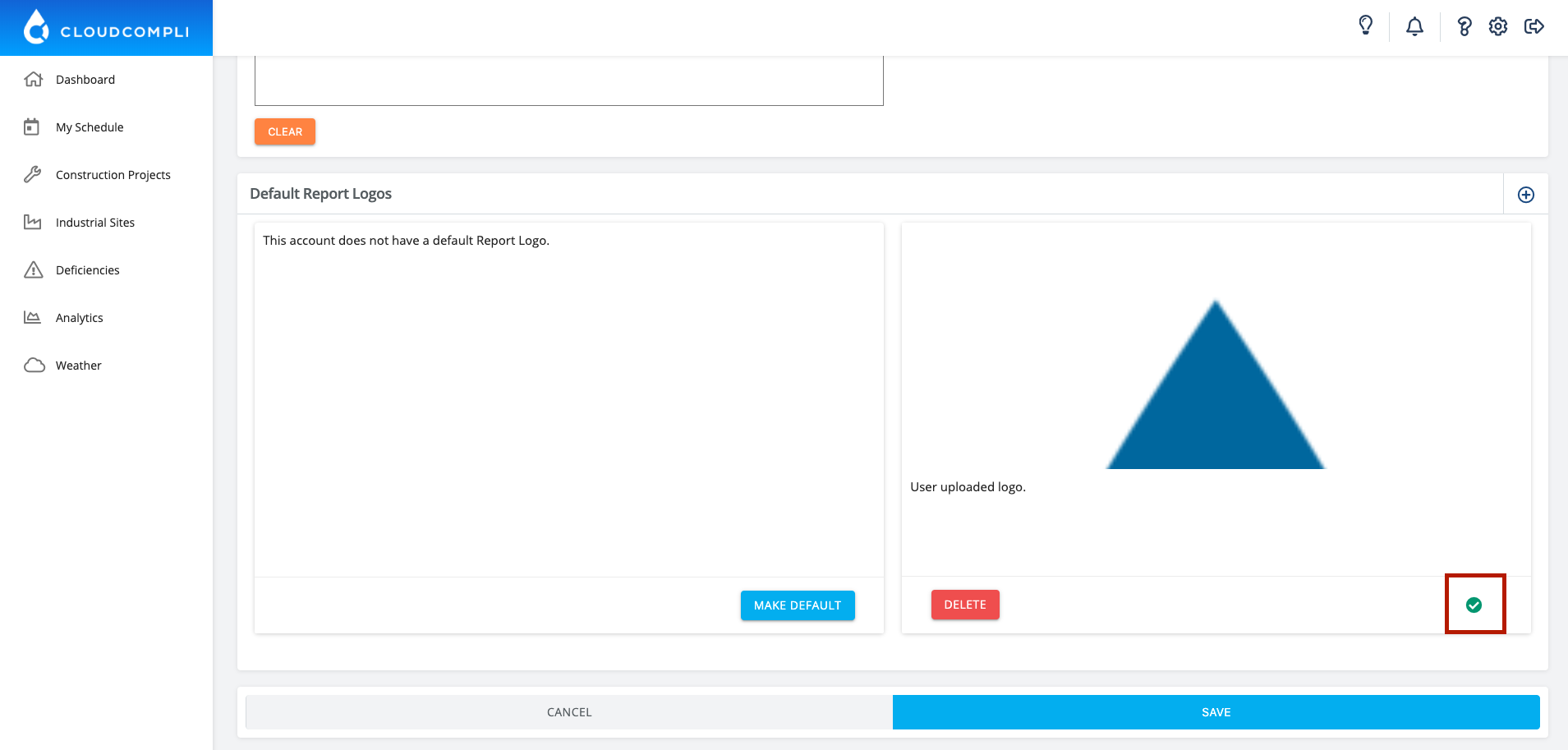
6. Click "Save" and scroll down to ensure the image was properly uploaded.