
Notifications Manager (Beta)
Begin with the Notifications Inbox to get started. This can be accessed through the "View All" notifications side panel or through your account settings.
The “View All” allows you to filter through your project notifications by name/address, notification type, site type, or tags.
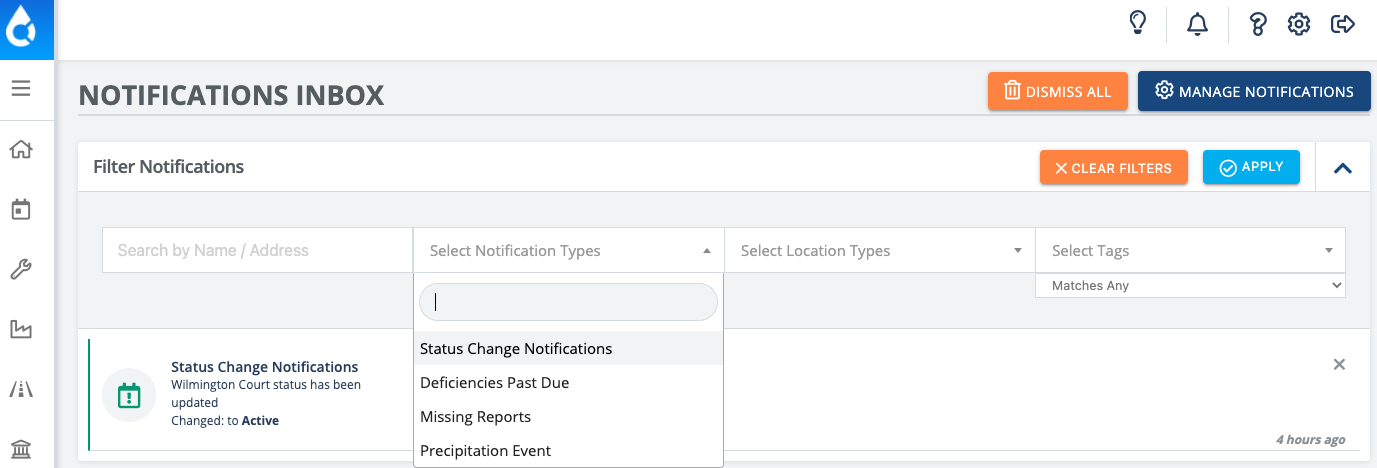
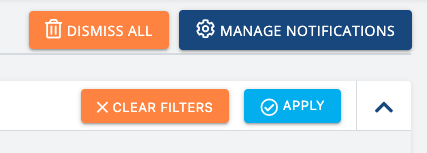
Navigate to “Manage Notifications” from the Notifications Inbox page.
Filter by a project to enable applicable notifications. Under the Active Notifications column, blue tabs will reveal what notifications are currently enabled for that site.
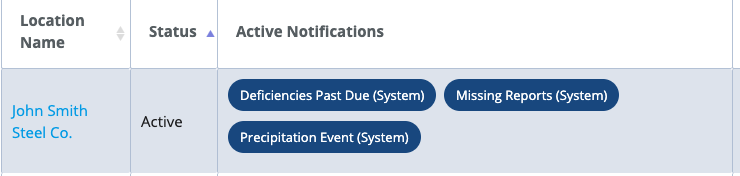
Select “Manage“ to modify which notifications to enable or disable for that particular project. The notification preference window we’ve seen before will appear.
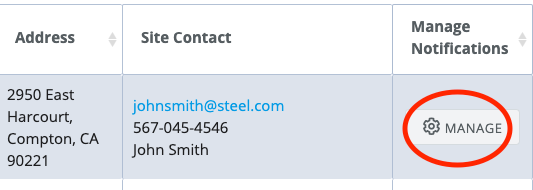
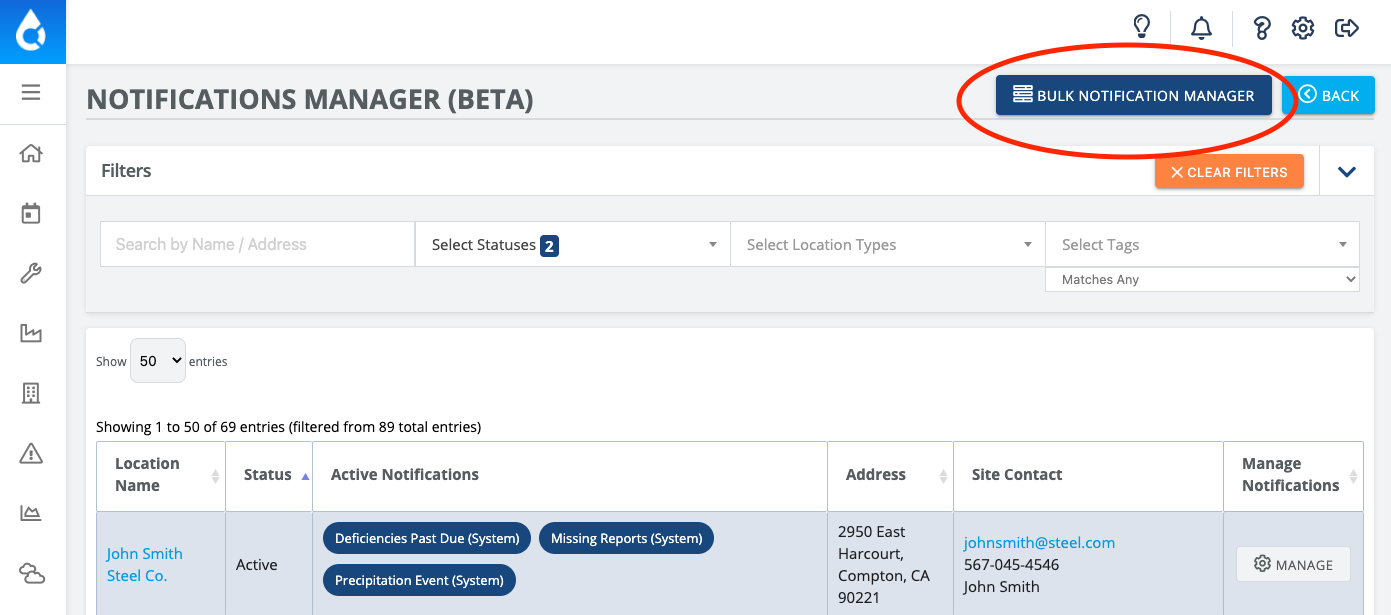
To manage Notifications in Bulk instead of modifying each individual project, select Bulk Notifications Manager. More details about this feature below.
Bulk Notifications Manager (Beta)
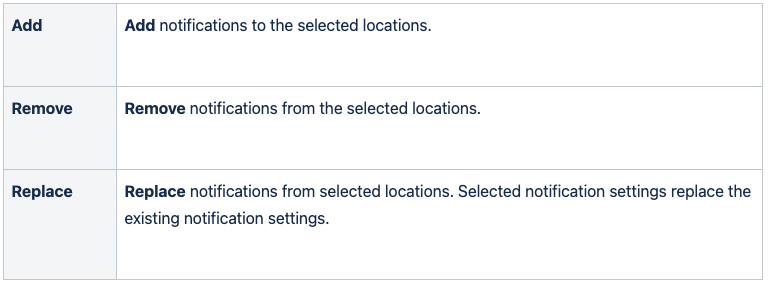
Add, Remove, or Replace project notifications for a large number of projects.
Navigate to the Buk Notifications Manager from the Notifications Manager page.
Step 1.
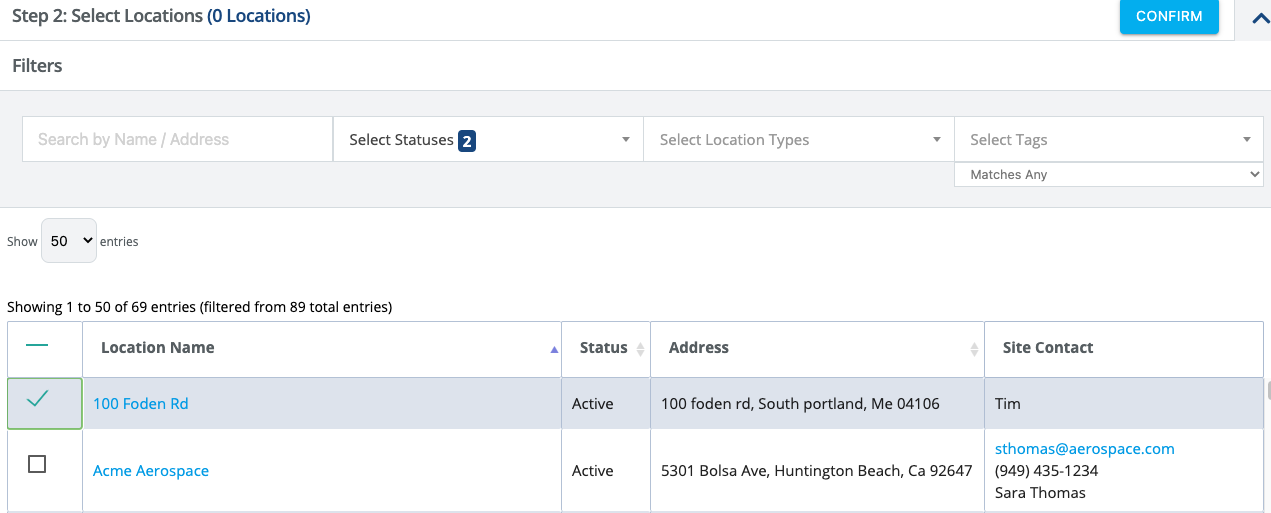
Step 2.
Select sites to modify
Filter by site name/address, site status, site type, or tags. Select All capability also available.
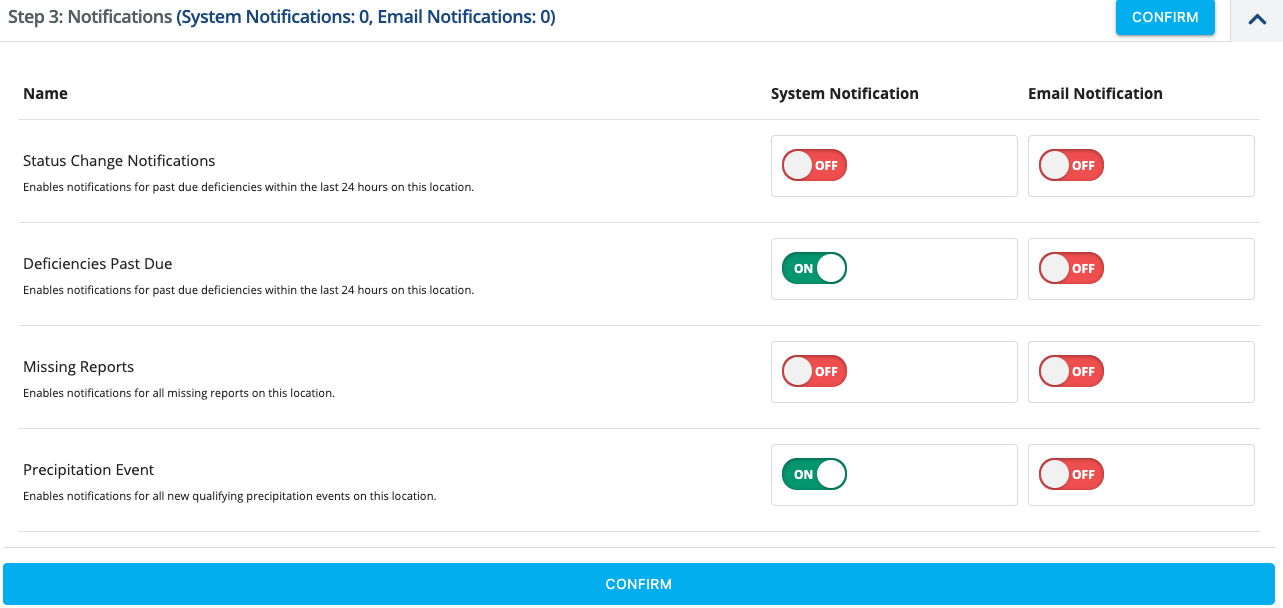
Step 3.
Notifications Manager - Choose which notifications to manage for selected sites.
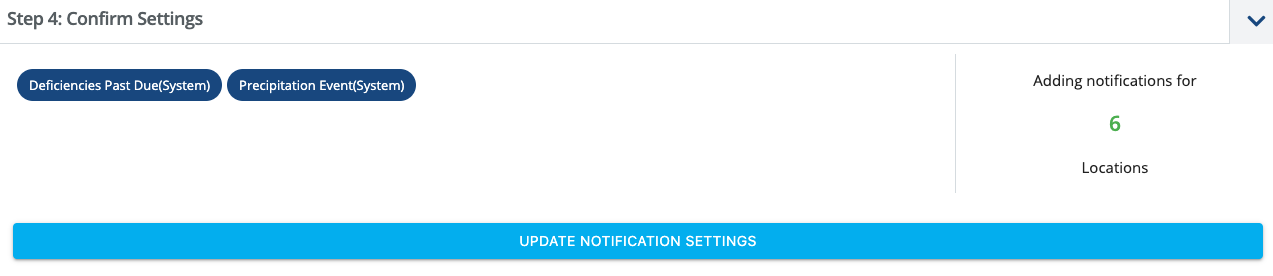
Step 4.
Verify and confirm changes.