

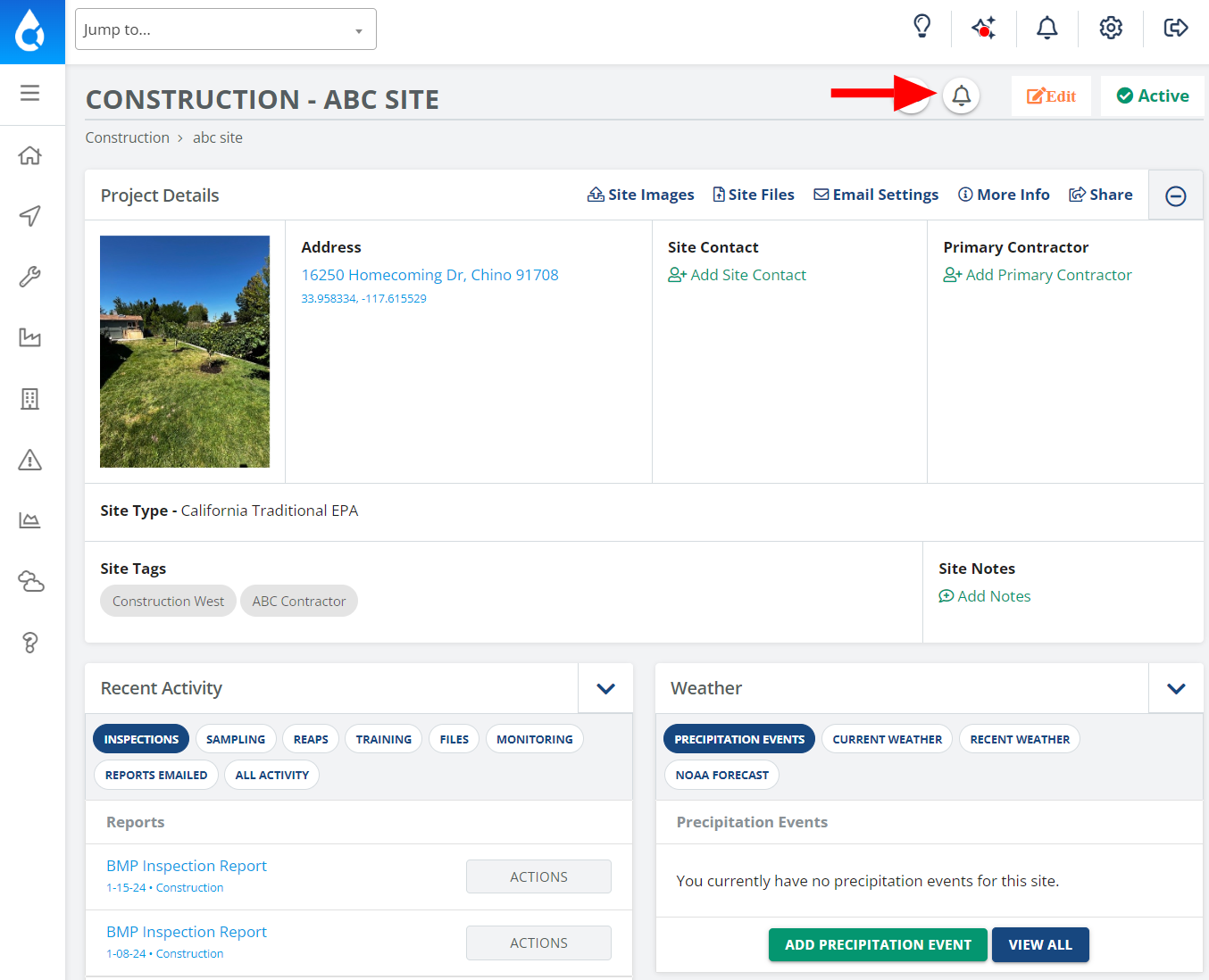
1. Select the Site/Project for which you wish to set up notifications. Once selected, click on the "Site Notifications" icon.
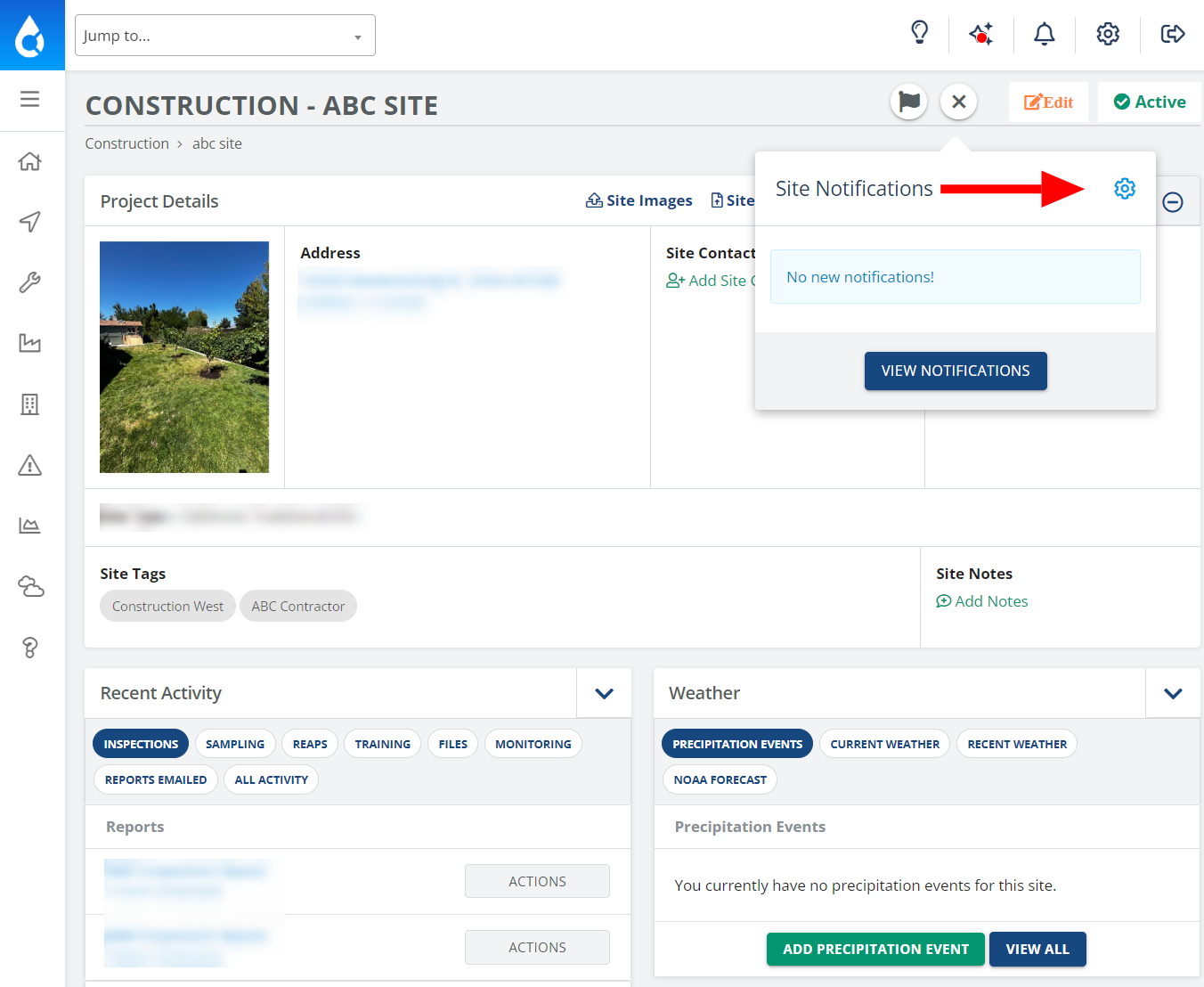
2. The Site/Project notifications will be displayed, if no notification has been set this will be shown as empty. Click on the notifications settings icon.
3. Please choose the types of notifications you would like to set up and what types of alerts you would prefer.
Note: System notifications are only shown when logged in, while Email notifications are sent directly to your email.
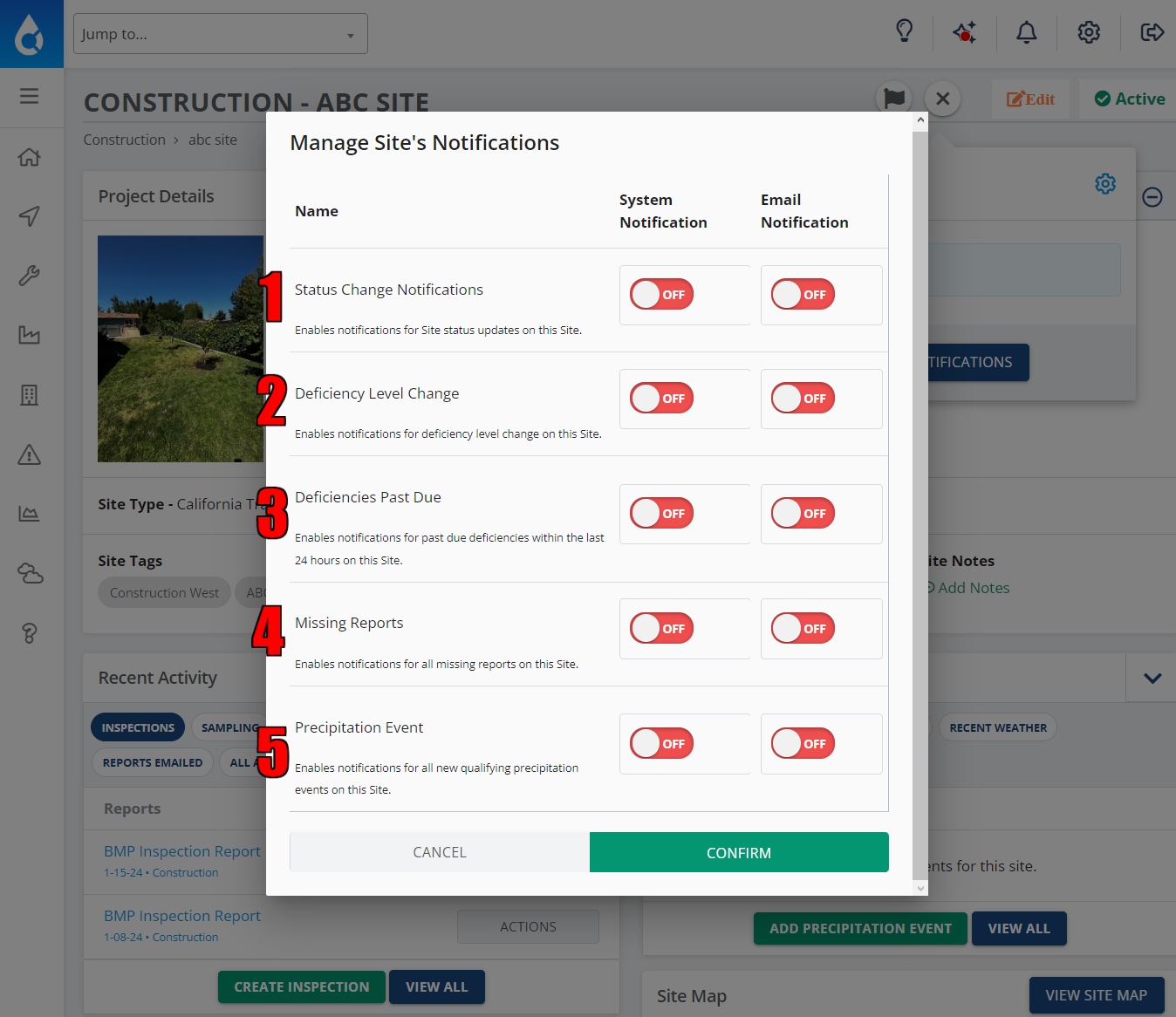
The Options for the notifications are the following:
1. Status Change Notifications
Alerts you when the Site/Project status changes.
2. Deficiency Level Change
Alerts you when a deficiency level changes on this Site/Project. (i.e. unresolved to resolved).
3. Deficiencies Past Due
Alerts you of past due deficiencies within the last 24 hours on this Site/Project.
4. Missing Reports
Alerts you when there is a missing report on this Site/Project.
5. Precipitation Event
Alerts you whenever there is a qualifying precipitation events on this Site/Project.
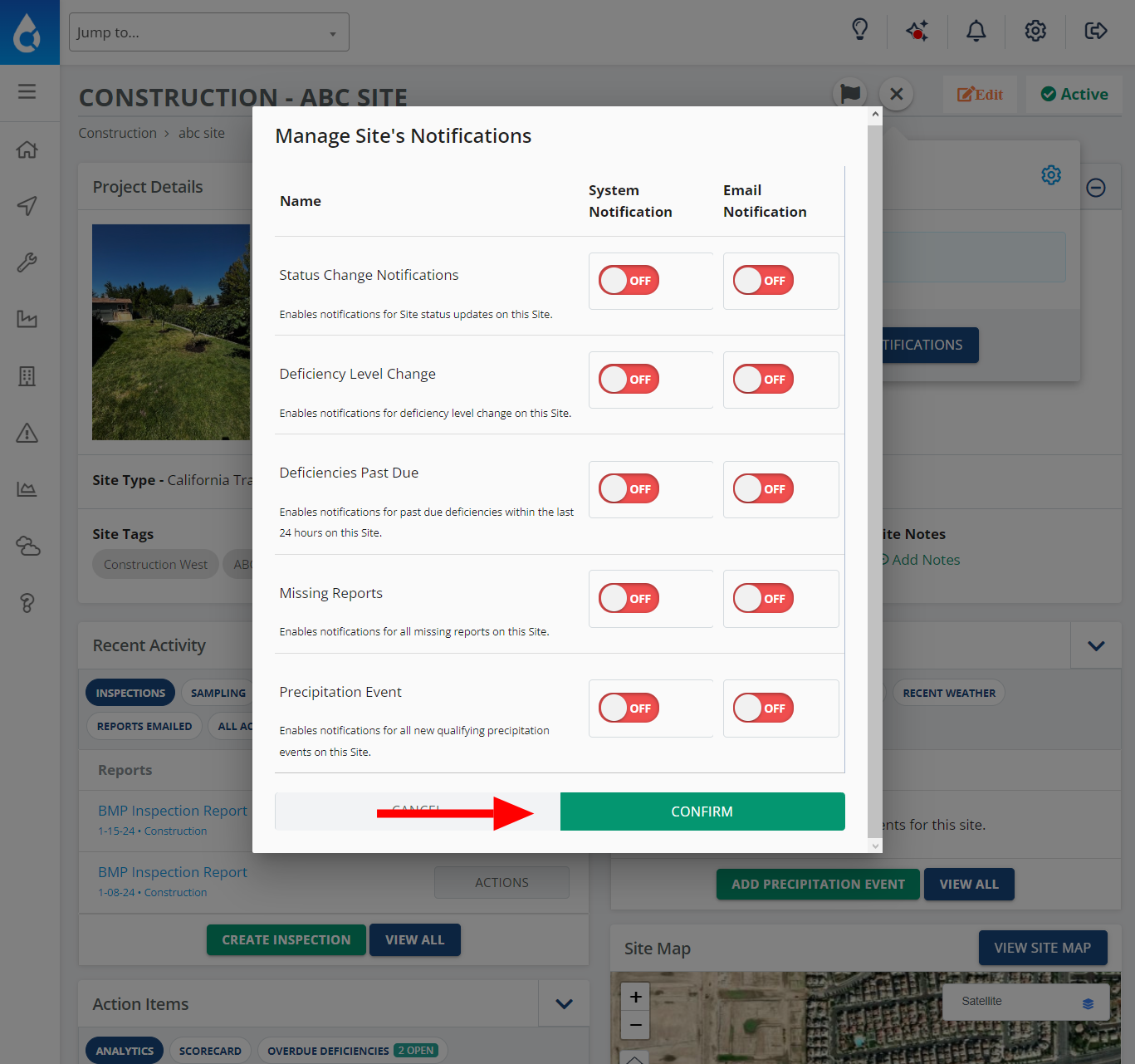
4. Once you have enabled the notifications that you want to receive, click on confirm to save the settings.
Note: The settings that you select for notifications will be only for the site/project that you selected.