
1. Select the Site for which you would like to generate the QR Code.
You can access the site under Construction, Industrial, Municipal Fixed Assets, Post-Construction, or another inspectable program available on your account.
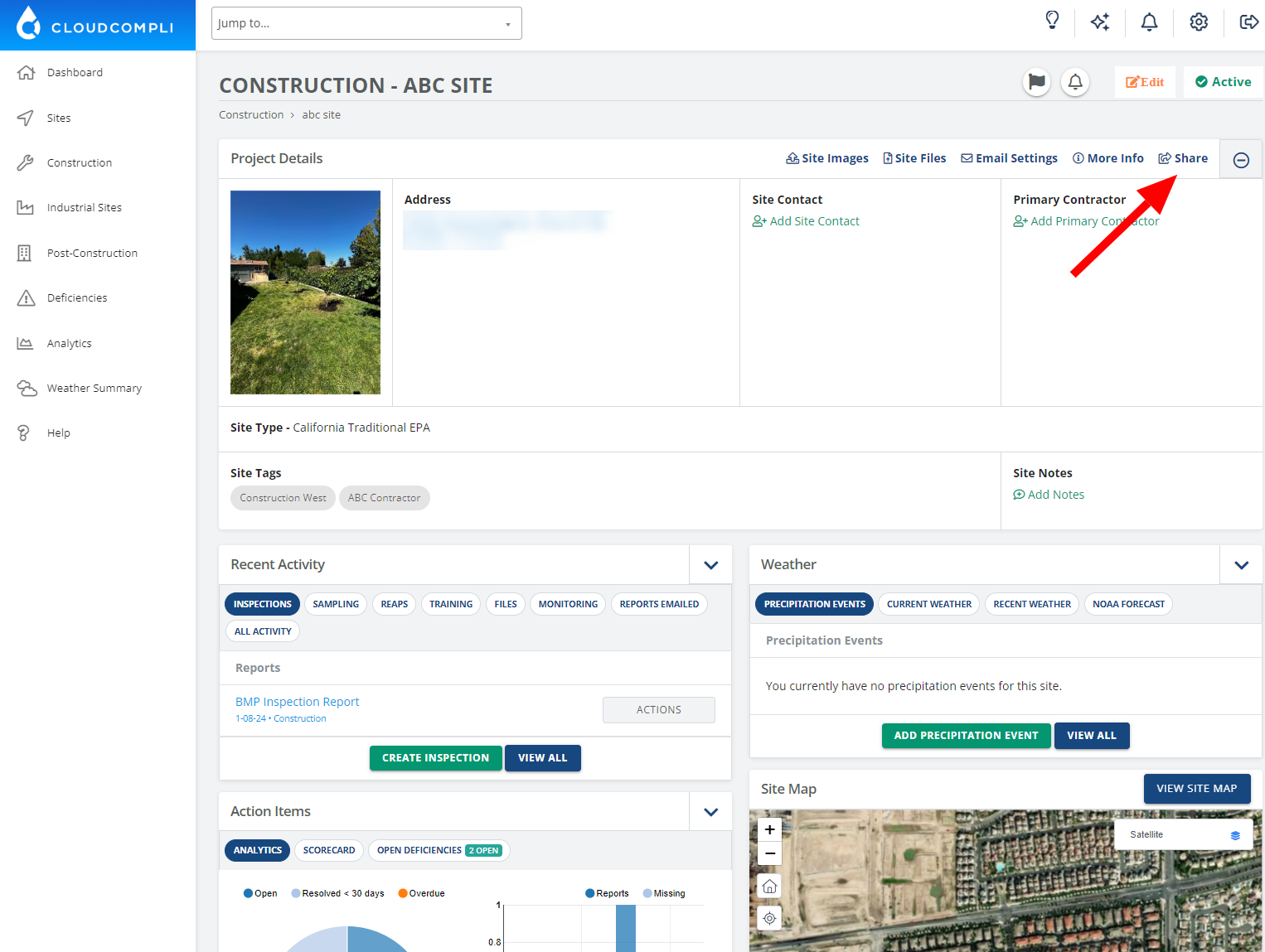
2. Once on the desired Site, click the share icon as shown in the screenshot below.
3. A pop-up window with options to share the project/site will be displayed.
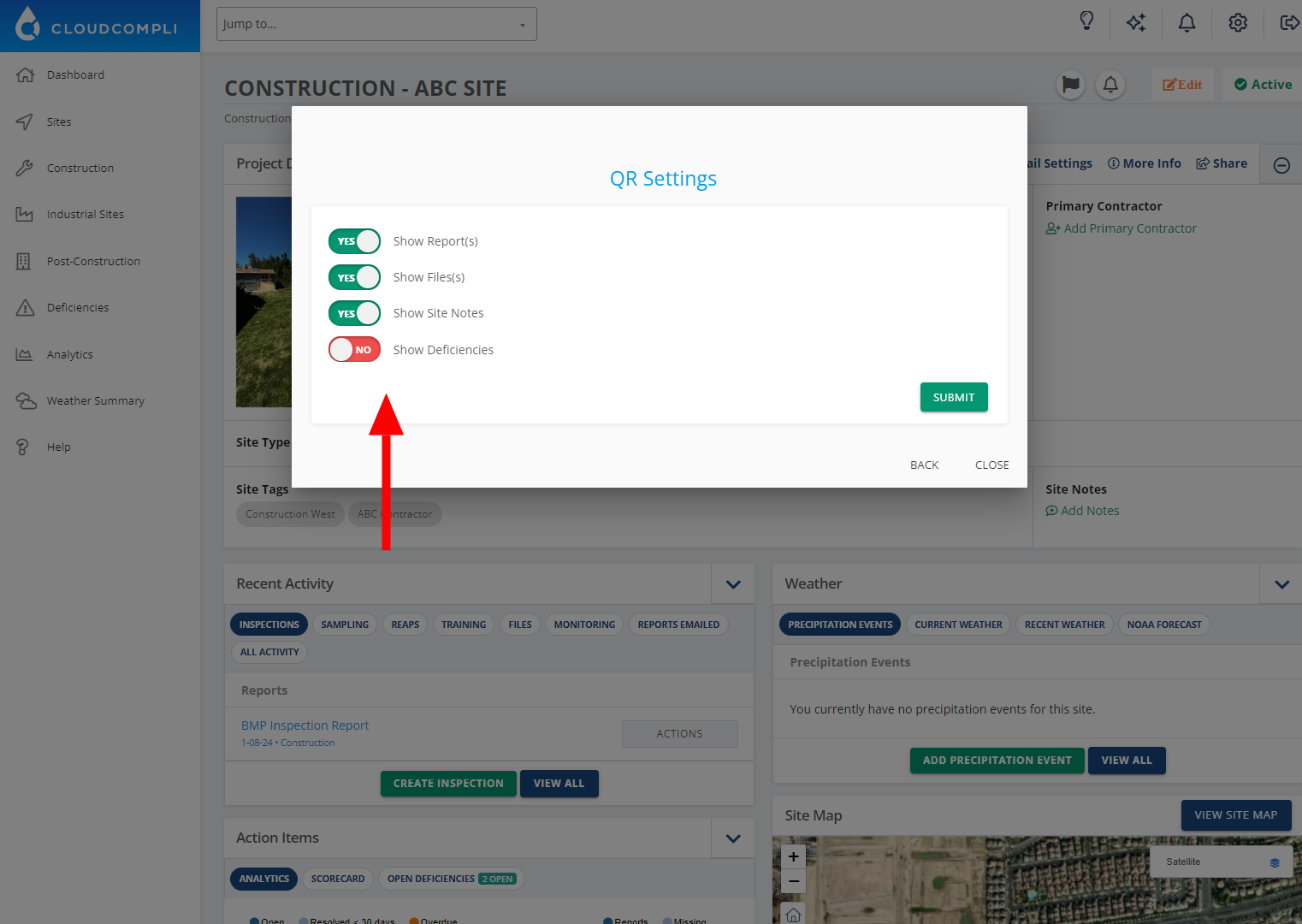
Review the QR settings before sharing the code to select what you would like shown (i.e., show inspection reports but not site notes).
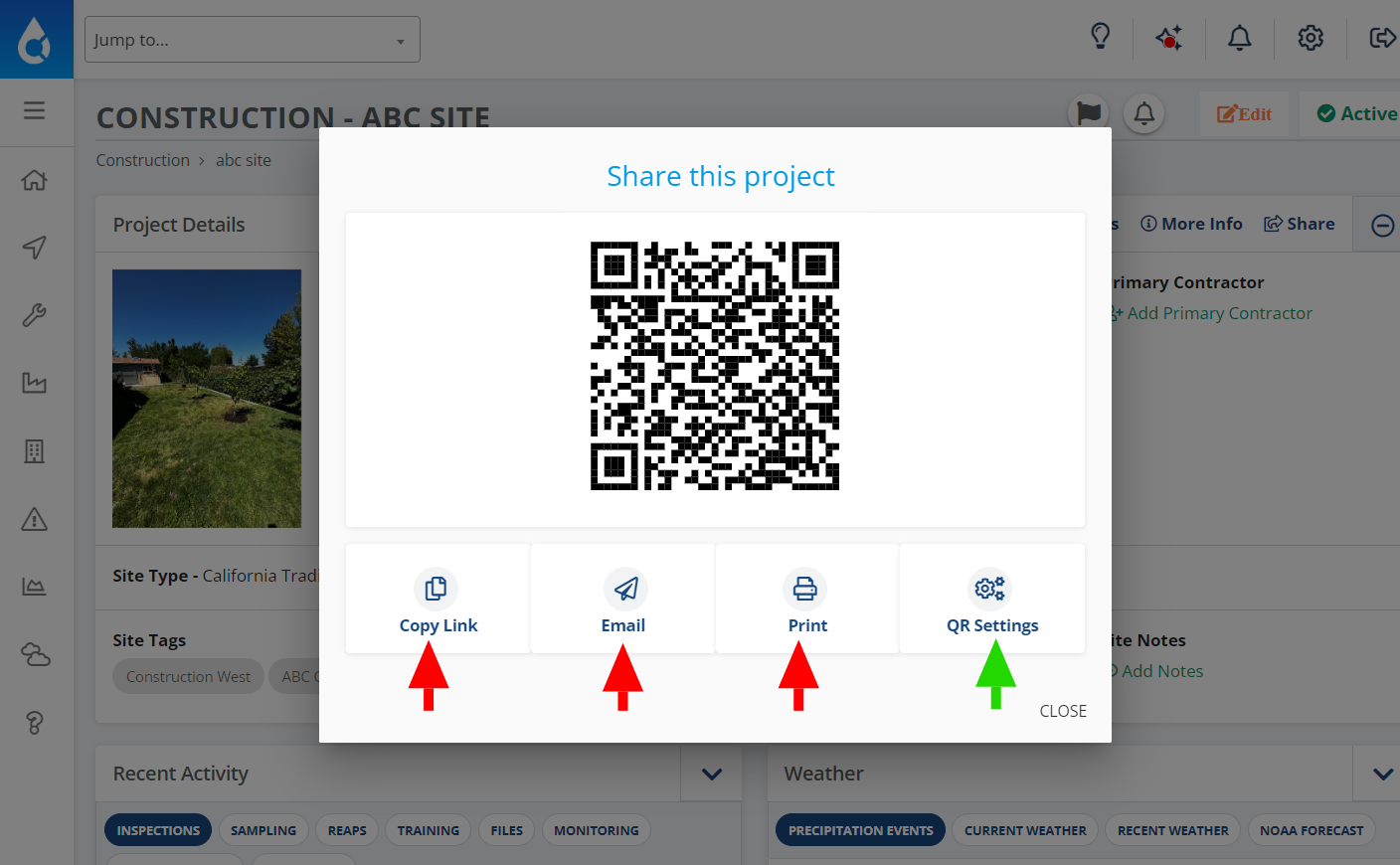
Select which option you would like to use to share the QR code:
Copy link: Copies the link to the QR code.
Email: Sends the QR code directly by email to the address that you enter.
Print: This lets you download the QR code as a PDF file or print it.